
Native ads
1. Native Ad
Import Native Ad SDK:
import 'package:secmtp_sdk/at_index.dart';import 'package:thinkup_sdk/at_index.dart';Note for Android: Hardware acceleration must be enabled in AndroidManifest when using native video ads. The handling method is as follows:
<application
        android:hardwareAccelerated="true">
        ....
</application>
1.1 Load Native Ad
You need to pass in the width and height of the ad display when loading the native ad
 _loadnativeAd() async {
     ATNativeManager.loadNativeAd(placementID: 'your placementId',
        extraMap: {
          ATCommon.isNativeShow(): false, //Whether to use PlatformView
          ATCommon.getAdSizeKey(): ATNativeManager.createNativeSubViewAttribute(
            300,
            250,
          ),//Set the width and height of the loaded ad
          ATNativeManager.isAdaptiveHeight(): false  //Whether to enable adaptive height, supported by some ad platforms such as Pangle, Kuaishou, Jingmei
        });
  }
1.2 Check for Ad Cache and Get Ad Status
Use the following code to check if there is ad cache:
 _hasNativeAdReady() async {
    await ATNativeManager
        .nativeAdReady(
      placementID: 'b5bacad80a0fb1',
    ).then((value) {
      print('flutter native ad cache: $value');
    });
  }
1.3 Enter Scene
entryNativeScenario() async {
     ATNativeManager.entryNativeScenario(
        placementID:  'your placementId',
        sceneID: 'your sceneID',
        );
  }
1.4 Show Native Ad
Native ads are implemented via PlatformView, so you only need to initialize the PlatformNativeWidget component after the ad is loaded successfully to use it
1.4.1 Description of PlatformNativeWidget Properties:
placementID: Ad ID
extraMap: Coordinates and sizes of sub-controls inside the native ad
sceneID: Scene ID (optional parameter)
You can display the native ad with the following code:
  @override
  Widget build(BuildContext context) {
    return Scaffold(
      appBar: AppBar(
        title: Text("native text"),
      ),
      body: SafeArea(
          child: Container(
            height: topSizeTool.getHeight(),
            color: Colors.black,
            child: PlatformNativeWidget(
              Configuration.nativePlacementID,
                {
                    ATNativeManager.parent(): ATNativeManager.createNativeSubViewAttribute(
                      topSizeTool.getWidth(), 340,
                      backgroundColorStr: '#FFFFFF'
                    ),
                    ATNativeManager.appIcon(): ATNativeManager.createNativeSubViewAttribute(
                        50, 50,
                        x: 10, y: 40, backgroundColorStr: 'clearColor'),
                    ATNativeManager.mainTitle(): ATNativeManager.createNativeSubViewAttribute(
                      topSizeTool.getWidth() - 190,
                      20,
                      x: 70,
                      y: 40,
                      textSize: 15,
                    ),
                    ATNativeManager.desc(): ATNativeManager.createNativeSubViewAttribute(
                        topSizeTool.getWidth() - 190, 20,
                        x: 70, y:70, textSize: 15),
                    ATNativeManager.cta(): ATNativeManager.createNativeSubViewAttribute(
                      100,
                      50,
                      x: topSizeTool.getWidth() - 110,
                      y: 40,
                      textSize: 15,
                      textColorStr: "#FFFFFF",
                      backgroundColorStr: "#2095F1"
                    ),
                    ATNativeManager.mainImage(): ATNativeManager.createNativeSubViewAttribute(
                        topSizeTool.getWidth() - 20, topSizeTool.getWidth() * 0.6,
                        x: 10, y: 100, backgroundColorStr: '#00000000'),
                    ATNativeManager.adLogo(): ATNativeManager.createNativeSubViewAttribute(
                        20, 10,
                        x: 10,
                        y: 10,
                        backgroundColorStr: '#00000000'),
                    ATNativeManager.dislike(): ATNativeManager.createNativeSubViewAttribute(
                      20,
                      20,
                      x: topSizeTool.getWidth() - 30,
                      y: 10,
                    ),
                    ATNativeManager.elementsView(): ATNativeManager.createNativeSubViewAttribute(
                      topSizeTool.getWidth(),
                      25,
                      x: 0,
                      y: 315,
                      textSize: 12,
                      textColorStr: "#FFFFFF",
                      backgroundColorStr: "#7F000000"
                    ),
              }
            ),
          )
      ),
    );
  }
1.4.2 ATNativeManager.createNativeSubViewAttribute
1.4.2.1 Explanation of Keys in the Map:
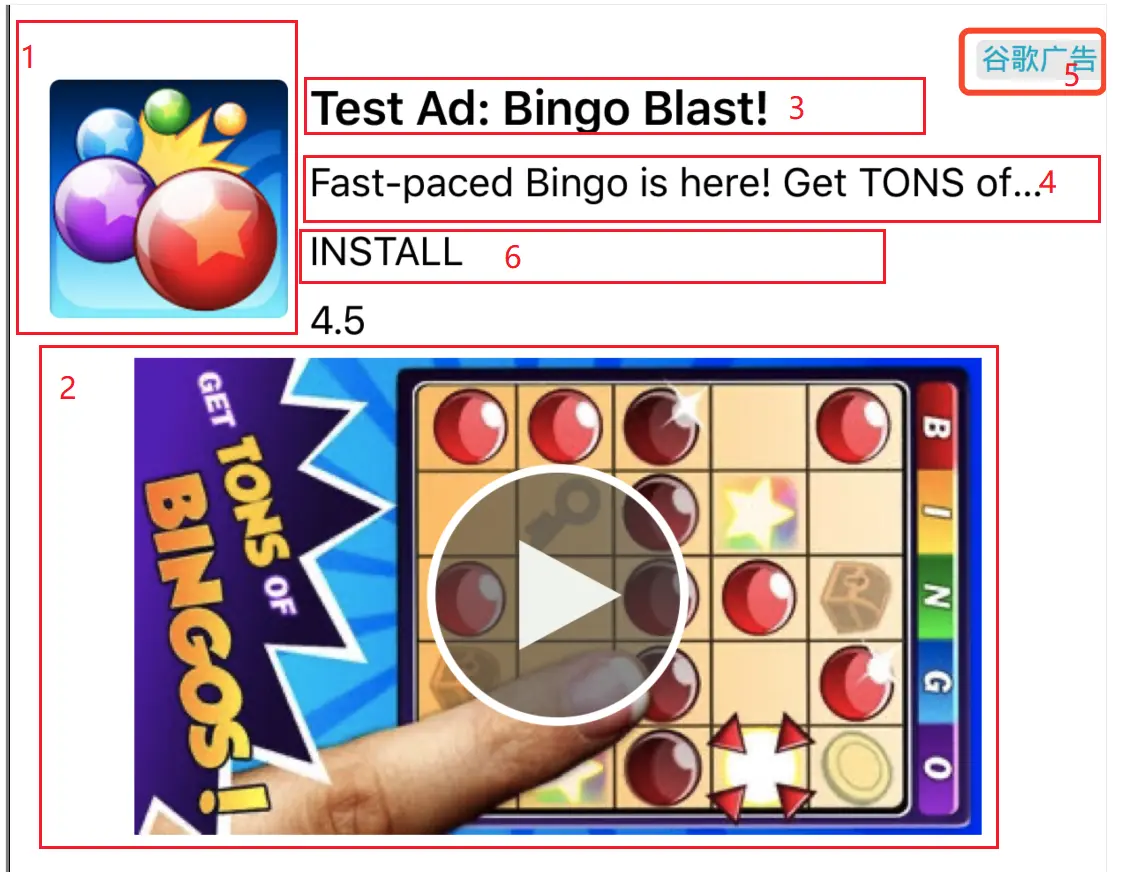
parent: Controls the overall size of the Native ad, as shown in the red circle area in the figure below:
appIcon: The appIcon attribute controls the ad icon properties, as shown in Figure 1 below:
mainImage: mainImage controls the ad cover image, as shown in Figure 2 below:
title: title controls the ad title, as shown in Figure 3 below:
desc: desc controls the ad description text, as shown in Figure 4 below
adLogo: adLogo controls the ad logo properties, as shown in Figure 5 below. Note: The position of the ad logo on some platforms is fixed internally and does not support developer specification, such as Admob.
cta: cta controls the click button, as shown in Figure 6 below
dislike: Close button
elementsView: (Added in v6.2.37) APK six elements (only valid for Android China region SDK)
customView: (Added in v6.2.37) Custom control, refer to ATCustomViewNative description below
Diagram of Native Self-rendered Feed Ad Material Example:
Map createNativeSubViewAttribute(
      double width,
      double height,
    { double x = 0,
      double y = 0,
      String backgroundColorStr = '#FFFFFF',
      String textColorStr = '#000000',
      String textAlignmentStr = 'left',
      double textSize = 15,
      bool isCustomClick =  true}
 )
Function Description:
1.x: Horizontal coordinate position (with the upper left corner as the origin)
2.y: Vertical coordinate position (with the upper left corner as the origin)
3.width: Width
4.height: Height
5.backgroundColor: Background color
6.textColor: Font color (only valid for Views with Text)
7.textSize: Font size (only valid for Views with Text)
8.textAlignment: Font alignment (only valid for Views with Text and only for iOS), left: left alignment, center: center alignment, right: right alignment
9.isCustomClick: Whether to download directly when clicked (only valid for Android and only for application ads on Tencent Ad Platform)
10.ATCustomViewNative: (Added in v6.2.37) Enumeration type of custom controls**(image: picture; label: text;)**
11.imagePath: (Added in v6.2.37) The placement path of the picture in the development project (valid when ATCustomViewNative is specified asimage)
12.title: (Added in v6.2.37) Custom text string to be displayed (valid when ATCustomViewNative is specified aslabel)
1.4.2.2 Explanation of Color and Height
About setting color transparency:
Android: You can directly add two hexadecimal digits of alpha to the original setting. For example, to set the transparency of the color value "#ffffff" to 0, set it to "#00ffffff", so the color is completely transparent. The transparency value can be adjusted according to actual conditions.
iOS: Only the string: "clearColor" can be used to specify a completely transparent color; semi-transparent color settings are not supported.
Template-rendered ad adaptive height:
Developers can achieve adaptive height through the following steps (adaptive height during loading is only forPangle and Tencent Ad Platform on Android)
Notes:
- When using adaptive height, relatively tall template ads may appear. Developers can check the required aspect ratio templates in the ad platform backend according to actual needs and remove templates that do not meet expectations.
- Adaptive height is not controlled by the height of the parent
- (This point is only for Android) Enable adaptive height during loading (need to pass Key: ATNativeManager.isAdaptiveHeight())
loadNativeWith() async {
     ATNativeManager.loadNativeAd(
        placementID: Configuration.nativePlacementID,
        extraMap: {
          ATCommon.getAdSizeKey(): ATNativeManager.createNativeSubViewAttribute(
            topSizeTool.getWidth(),
            topSizeTool.getHeight(),
          ),
          ATNativeManager.isAdaptiveHeight(): true
        });
}- Enable adaptive height during display (need to pass isAdaptiveHeight as true)
PlatformNativeWidget(Configuration.nativePlacementID, {...}
    ,isAdaptiveHeight: true);
1.5 Implement Native Ad Listener
Introduction to ATNativeResponse Properties:
NativeStatus: Native ad status
placementID: Ad placement ID
requestMessage: Request information (error information)
extraMap: Callback Information
isDeeplinkSuccess: Whether DeepLink is successful
To receive notifications about various native ad events (load success/failure, display, click, etc.), here is an example
_nativeListen() {

    ATListenerManager.nativeEventHandler.listen((value) {

      switch (value.nativeStatus) {
        // Ad loading failed
        case NativeStatus.nativeAdFailToLoadAD:
          print("flutter nativeAdFailToLoadAD ---- placementID: ${value.placementID} ---- errStr:${value.requestMessage}");
          break;
        // Ad loading succeeded
        case NativeStatus.nativeAdDidFinishLoading:
          print("flutter nativeAdDidFinishLoading ---- placementID: ${value.placementID}");
          break;
        // Ad clicked
        case NativeStatus.nativeAdDidClick:
          print("flutter nativeAdDidClick ---- placementID: ${value.placementID} ---- extra:${value.extraMap}");
          break;
        // DeepLink triggered
        case NativeStatus.nativeAdDidDeepLink:
          print("flutter nativeAdDidDeepLink ---- placementID: ${value.placementID} ---- extra:${value.extraMap} ---- isDeeplinkSuccess:${value.isDeeplinkSuccess}");
          break;
        // Ad video finished playing (this callback is available for some ad platforms)
        case NativeStatus.nativeAdDidEndPlayingVideo:
          print("flutter nativeAdDidEndPlayingVideo ---- placementID: ${value.placementID} ---- extra:${value.extraMap}");
          break;
        // Ad entered full-screen playback (only available for iOS)
        case NativeStatus.nativeAdEnterFullScreenVideo:
          print("flutter nativeAdEnterFullScreenVideo ---- placementID: ${value.placementID} ---- extra:${value.extraMap}");
          break;
        // Ad exited full-screen playback (only available for iOS)
        case NativeStatus.nativeAdExitFullScreenVideoInAd:
          print("flutter nativeAdExitFullScreenVideoInAd ---- placementID: ${value.placementID} ---- extra:${value.extraMap}");
          break;
        // Ad displayed successfully
        case NativeStatus.nativeAdDidShowNativeAd:
          print("flutter nativeAdDidShowNativeAd ---- placementID: ${value.placementID} ---- extra:${value.extraMap}");
          break;
        // Ad video started playing (this callback is available for some ad platforms)
        case NativeStatus.nativeAdDidStartPlayingVideo:
          print("flutter nativeAdDidStartPlayingVideo ---- placementID: ${value.placementID} ---- extra:${value.extraMap}");
          break;
        // Ad close button clicked (this callback is available for some ad platforms)
        case NativeStatus.nativeAdDidTapCloseButton:
          print("flutter nativeAdDidTapCloseButton ---- placementID: ${value.placementID} ---- extra:${value.extraMap}");
          break;
        case NativeStatus.nativeAdDidCloseDetailInAdView:
          print("flutter nativeAdDidCloseDetailInAdView ---- placementID: ${value.placementID} ---- extra:${value.extraMap}");
          break;
        // Ad Draw loaded successfully (only available for iOS)
        case NativeStatus.nativeAdDidLoadSuccessDraw:
          print("flutter nativeAdDidLoadSuccessDraw ---- placementID: ${value.placementID} ---- extra:${value.extraMap}");
          break;
        case NativeStatus.nativeAdUnknown:
          print("flutter downloadUnknown");
          break;
      }
    });
};}.cls-2{fill:%230868f7;}.cls-3{fill:url(%23未命名的渐变_44);}.cls-4{fill:%23333;}%3c/style%3e%3clinearGradient%20id='未命名的渐变_8'%20x1='33.73'%20y1='100.61'%20x2='-0.03'%20y2='-1.06'%20gradientUnits='userSpaceOnUse'%3e%3cstop%20offset='0'%20stop-color='%237ae9fb'/%3e%3cstop%20offset='0.67'%20stop-color='%232b90f8'/%3e%3cstop%20offset='1'%20stop-color='%230868f7'/%3e%3c/linearGradient%3e%3clinearGradient%20id='未命名的渐变_44'%20x1='27.86'%20y1='18.67'%20x2='68.36'%20y2='22.22'%20gradientUnits='userSpaceOnUse'%3e%3cstop%20offset='0'%20stop-color='%235ac7f2'/%3e%3cstop%20offset='1'%20stop-color='%230868f7'/%3e%3c/linearGradient%3e%3c/defs%3e%3cpath%20class='cls-1'%20d='M29,28.74V81.91l-9.51-3.68v0L8.52,74A7.17,7.17,0,0,1,4,67.32V24.54A3.76,3.76,0,0,1,9.08,21Z'/%3e%3cpath%20class='cls-2'%20d='M68.09,78.07a13.15,13.15,0,0,1-17.9,12.06L29,81.91h0V28.74L50.19,37A13.17,13.17,0,0,0,68.08,25.3h0Z'/%3e%3cpath%20class='cls-3'%20d='M68.08,25.3a13.19,13.19,0,0,1-6.73,10.87A13.09,13.09,0,0,1,50.19,37L29,28.74V6A3.76,3.76,0,0,1,34.1,2.52l25.59,9.91A13.22,13.22,0,0,1,68.08,25.3Z'/%3e%3cpath%20class='cls-4'%20d='M129.06,81.76a4.33,4.33,0,0,1-3.19-1.31,4.4,4.4,0,0,1-1.31-3.24V56.86H97.65V77.21a4.36,4.36,0,0,1-1.35,3.2A4.68,4.68,0,0,1,93,81.76a4.32,4.32,0,0,1-3.19-1.31,4.37,4.37,0,0,1-1.32-3.24V27.27A4.58,4.58,0,0,1,89.83,24a4.59,4.59,0,0,1,7.82,3.27V48.15h26.91V27.27A4.58,4.58,0,0,1,125.91,24a4.59,4.59,0,0,1,7.82,3.27V77.21a4.37,4.37,0,0,1-1.36,3.2A4.65,4.65,0,0,1,129.06,81.76Z'/%3e%3cpath%20class='cls-4'%20d='M163.77,81.66c-6.57,0-11.76-1.92-15.44-5.7s-5.54-9.07-5.54-15.74a26.76,26.76,0,0,1,2.09-10.43,17.72,17.72,0,0,1,6.67-8.06,19.15,19.15,0,0,1,10.68-2.95,19,19,0,0,1,10.46,2.8,18.7,18.7,0,0,1,6.55,7.36,22.53,22.53,0,0,1,2.36,10.28A4.51,4.51,0,0,1,177,63.77H152.23a10.8,10.8,0,0,0,3.49,6.65c2,1.68,4.88,2.52,8.66,2.52a22.25,22.25,0,0,0,7.54-1.21c.74-.3,1.55-.67,2.37-1.07a3.75,3.75,0,0,1,1.84-.4,4.09,4.09,0,0,1,3,1.15,4,4,0,0,1,1.12,3,4.38,4.38,0,0,1-2.58,3.82,32.34,32.34,0,0,1-6.36,2.61A28.67,28.67,0,0,1,163.77,81.66ZM172.4,55.9a9.72,9.72,0,0,0-1.63-4.56A9.9,9.9,0,0,0,167,48a10.38,10.38,0,0,0-4.64-1.14,12,12,0,0,0-4.77,1.06,9.54,9.54,0,0,0-4.89,5.66,11.78,11.78,0,0,0-.51,2.3Z'/%3e%3cpath%20class='cls-4'%20d='M193,81.64a4.49,4.49,0,0,1-4.51-4.55V27.28A4.58,4.58,0,0,1,189.84,24a4.48,4.48,0,0,1,3.28-1.36A4.36,4.36,0,0,1,196.35,24a4.46,4.46,0,0,1,1.31,3.31V77.09a4.34,4.34,0,0,1-1.35,3.2A4.67,4.67,0,0,1,193,81.64Z'/%3e%3cpath%20class='cls-4'%20d='M263.79,81.71a5.7,5.7,0,0,1-4.2-1.74,5.76,5.76,0,0,1-1.73-4.19V27.37a4.58,4.58,0,0,1,1.35-3.27A4.59,4.59,0,0,1,267,27.37V72.53h24a4.58,4.58,0,0,1,3.27,7.82A4.66,4.66,0,0,1,291,81.71Z'/%3e%3cpath%20class='cls-4'%20d='M424.48,81.74a4.71,4.71,0,0,1-2.71-.88,5.43,5.43,0,0,1-1-1l-.07-.09-12.41-17-5.41,5v9.44a4.31,4.31,0,0,1-1.36,3.19,4.66,4.66,0,0,1-3.3,1.36A4.29,4.29,0,0,1,395,80.42a4.36,4.36,0,0,1-1.32-3.23V27.37A4.58,4.58,0,0,1,395,24.1a4.52,4.52,0,0,1,6.58.12,4.54,4.54,0,0,1,1.24,3.15V56.31l17.72-16.38.05,0a4.8,4.8,0,0,1,2.94-1.11,4.4,4.4,0,0,1,3.27,1.2,4.57,4.57,0,0,1,1.2,3.27,4.44,4.44,0,0,1-.77,2.33,7.45,7.45,0,0,1-1.43,1.65l-11,9.64,13.34,17.68a5,5,0,0,1,1,2.71,4.12,4.12,0,0,1-1.36,3.24A4.64,4.64,0,0,1,424.48,81.74Z'/%3e%3cpath%20class='cls-4'%20d='M317.93,81.76a21.5,21.5,0,1,1,21.17-21.5A21.37,21.37,0,0,1,317.93,81.76Zm0-34.1a12.61,12.61,0,1,0,12.42,12.6A12.52,12.52,0,0,0,317.93,47.66Z'/%3e%3cpath%20class='cls-4'%20d='M212.18,101.22a4.12,4.12,0,0,1-3.05-1.26,4.17,4.17,0,0,1-1.26-3.1V43.34a4.37,4.37,0,0,1,1.3-3.14,4.26,4.26,0,0,1,3.13-1.3,4.19,4.19,0,0,1,3.1,1.26,4.32,4.32,0,0,1,1.26,3.16,20.77,20.77,0,0,1,13-4.54,21.51,21.51,0,0,1,0,43,20.51,20.51,0,0,1-13-4.57V96.86a4.15,4.15,0,0,1-1.3,3.06A4.5,4.5,0,0,1,212.18,101.22Zm17.43-53.63c-6.23,0-12.93,4.11-12.93,12.72a12.73,12.73,0,0,0,25.46,0A12.71,12.71,0,0,0,229.61,47.59Z'/%3e%3cpath%20class='cls-4'%20d='M365.76,81.76a21.5,21.5,0,1,1,21.18-21.5A21.37,21.37,0,0,1,365.76,81.76Zm0-34.1a12.61,12.61,0,1,0,12.42,12.6A12.52,12.52,0,0,0,365.76,47.66Z'/%3e%3c/svg%3e)