
Import and configure
1. Overview
Flutter Version Requirement: flutter: ">=2.12.0"
iOS SDK version requirements:
| Flutter SDK Version | iOS SDK Version |
|---|---|
| <= 1.0.8 | 6.4.93 |
| >=1.0.9 | 6.5.34 |
2. Account and Related ID Preparation
You can refer to Account and Related ID Preparation for instructions on account registration and login.
3. Import Flutter SDK
Refer to the Demo Flutter Demo Github Repository (Click to Redirect)
Two methods are supported for importing the SDK:
3.1 Import from pub.dev
- Run the following command in the terminal: (Refer to https://pub.dev/packages/secmtp_sdk)
flutter pub add secmtp_sdkAfter running the command, the following code will be automatically added to the pubspec.yaml file of the project, and flutter pub get will be triggered. You can also manually enter the following code in pubspec.yaml:
dependencies:
secmtp_sdk: ^1.0.8- After successful configuration, you can import the following header file for use:
import 'package:secmtp_sdk/at_init.dart';3.2 Manual Import
- Download the TopOn_Flutter_SDK package and decompress it.
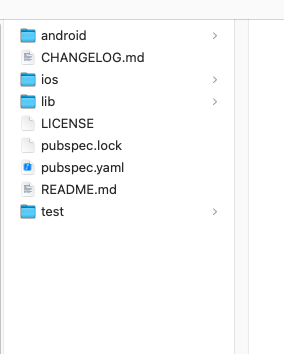
- Add the decompressed files to your project. You can also import the decompressed files into a newly created directory.
- Locate the pubspec.yaml file in the project and add the local dependency:
secmtp_sdk:
path: ../- Import the header file in the class:
import 'package:secmtp_sdk/at_init.dart';- Run the following command in the terminal: (Refer to https://pub.dev/packages/thinkup_sdk)
flutter pub add thinkup_sdkAfter running the command, the following code will be automatically added to the pubspec.yaml file of the project, and flutter pub get will be triggered. You can also manually enter the following code in pubspec.yaml:
dependencies:
thinkup_sdk: ^1.0.8- After successful configuration, you can import the following header file for use:
import 'package:thinkup_sdk/at_init.dart';3.2 Manual Import
-
Download the TopOn_Flutter_SDK package and decompress it.
-
Add the decompressed files to your project. You can also import the decompressed files into a newly created directory.
-
Locate the pubspec.yaml file in the project and add the local dependency:
thinkup_sdk:
path: ../- Import the header file in the class:
import 'package:thinkup_sdk/at_init.dart';4. Import iOS SDK
4.1 Prerequisites
- The latest version of Xcode
- CocoaPods 1.15.2 or higher installed
4.2 Locate the Correct anythink_sdk.podspec File
Note: Due to naming differences in the Flutter plugins downloaded from the SDK Download Center by different developers, anythink_sdk.podspec may also be named thinkup_sdk.podspec. Please refer to the actual plugin you downloaded.
- If you imported the Flutter SDK from pub.dev
- Import the header file and hover your mouse over the imported header file:
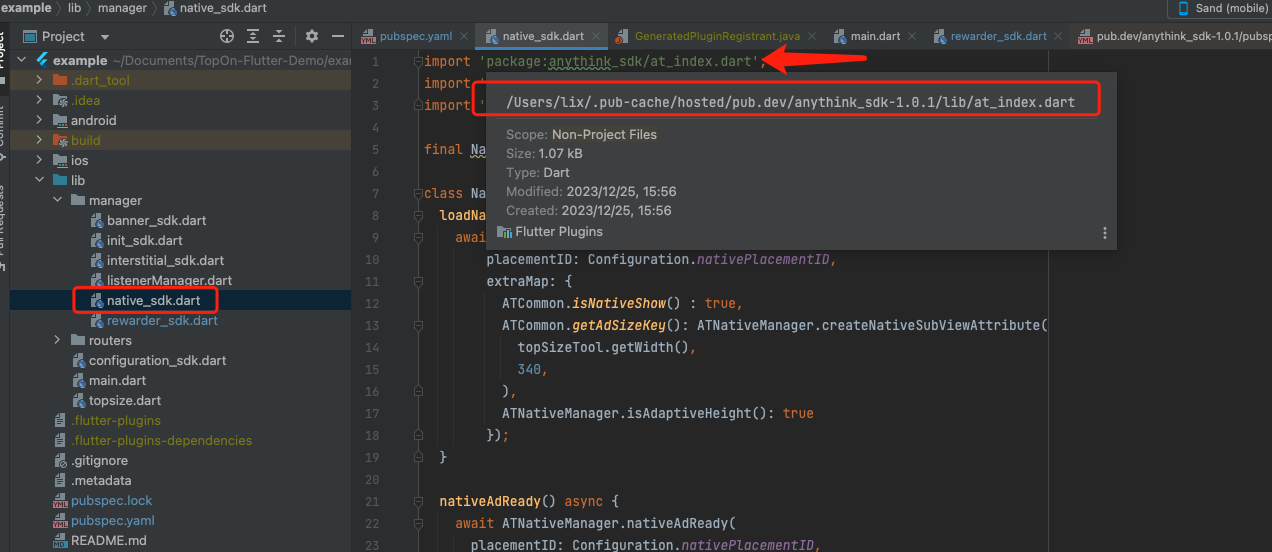
- Copy the path in the red box and open it with Finder to locate the anythink_sdk.podspec file (or thinkup_sdk.podspec as mentioned in the above note).
- If you imported the Flutter SDK manually
The target file is: the anythink_sdk.podspec file in your project directory (or thinkup_sdk.podspec as mentioned in the above note).
4.3 Obtain the iOS SDK CocoaPods Code
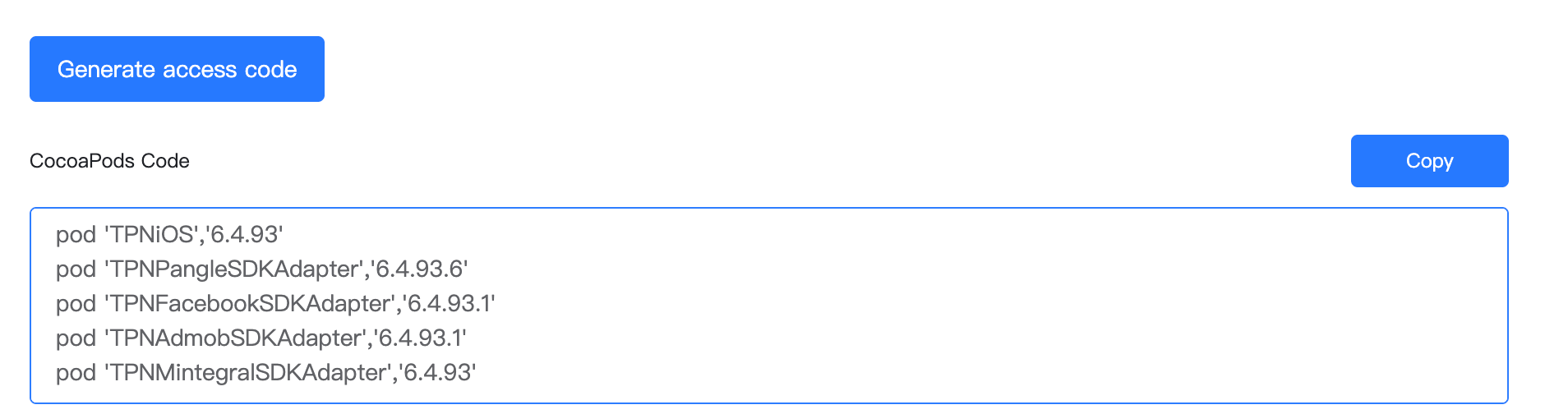
Please click here to go to the SDK Download Center, select the platforms to be integrated, choose "Yes" for CocoaPods integration, and then click to generate the integration code. (Take iOS 6.4.26 as an example; it is recommended to use the latest version of the iOS SDK)
4.4 Add iOS SDK Dependencies to the Correct anythink_sdk.podspec File
Convert the CocoaPods reference code generated in the previous step into the format required by the .podspec file and fill it into anythink_sdk.podspec. Example before and after conversion:
// Before conversion:
pod 'TPNiOS','x.x.xx'
pod 'TPNPangleSDKAdapter','x.x.xx'
pod 'TPNFacebookSDKAdapter','x.x.xx'
pod 'TPNAdmobSDKAdapter','x.x.xx'
pod 'TPNMintegralSDKAdapter','x.x.xx'

Only need to replace pod with s.dependency

// After conversion:
s.dependency 'TPNiOS','x.x.xx'
s.dependency 'TPNPangleSDKAdapter','x.x.xx'
s.dependency 'TPNFacebookSDKAdapter','x.x.xx'
s.dependency 'TPNAdmobSDKAdapter','x.x.xx'
s.dependency 'TPNMintegralSDKAdapter','x.x.xx'
4.5 Install the iOS SDK
After editing the anythink_sdk.podspec file, open the directory where the iOS podfile is located via terminal and wait for the installation to complete. (If it is not the first installation, you may need to delete the podfile.lock file before executing the command below)
pod install --repo-update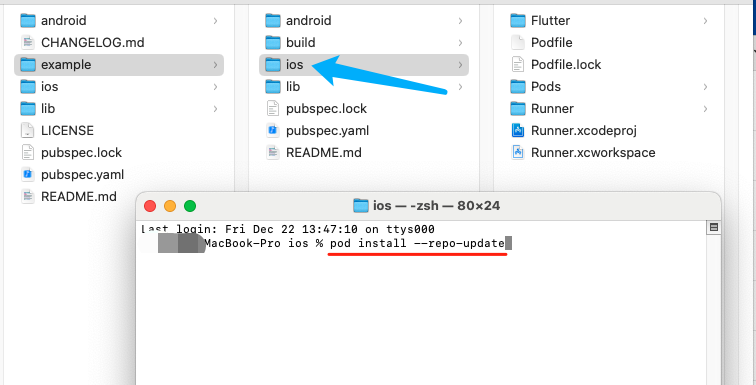
5. Configure the iOS Project
5.1 Update Info.plist
5.1.1 Open Info.plist
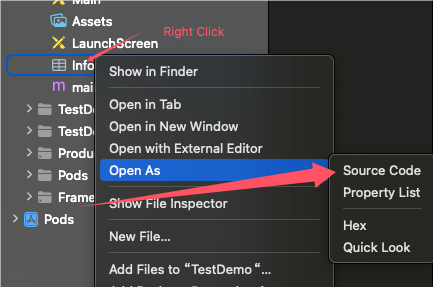
5.1.2 Add the SKAdNetworkItems Key
The SKAdNetwork ID of UnityAds varies for each project. If you select this ad platform, please refer to the ID generated in the UnityAds backend and check it in the UnityAds Admin Console.
Please go back to the "SDK Download Center" page opened above, and add the content listed in the "SKAdNetwork IDs Code" section to your Info.plist file. Refer to the figure below:

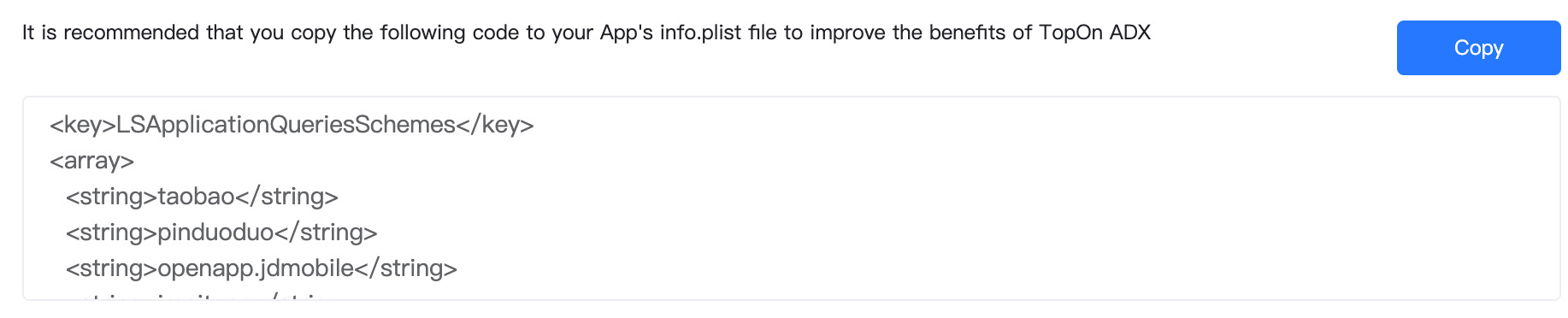
5.1.3 Add the LSApplicationQueriesSchemes Key
Please go back to the "SDK Download Center" page opened above again, or directly copy the code below, and add the content listed in the section below to your Info.plist file. Refer to the figure below:
5.1.4 Add the NSUserTrackingUsageDescription Key
Starting from iOS 14.5, apps can only access the user's IDFA data and deliver targeted ads to users with the user's explicit permission.
Before the app calls the App Tracking Transparency framework to request app tracking authorization from end users, the IDFA will be unavailable. If an app does not make this request, the read IDFA will return a string of all zeros.
<key>NSUserTrackingUsageDescription</key>
<string>Modify this to the permission request description you want users to see, which can be localized</string>
5.1.5 Add the NSAppTransportSecurity Key
After iOS 10, if the Allow Arbitrary Loads in Web Content key exists, it will override the setting of Allow Arbitrary Loads
<key>NSAppTransportSecurity</key>
<dict>
	<key>NSAllowsArbitraryLoads</key>
	<true></true>
</dict>
5.1.6 Add the GADApplicationIdentifier Key for the AdMob Platform (Optional)
Add this key only if you have selected the AdMob platform for integration. For more information, please visit here.
<key>GADApplicationIdentifier</key>
<string>Your GADApplicationIdentifier </string>
<!-- Example value format: ca-app-pub-9488501426181082~7319780494   -->
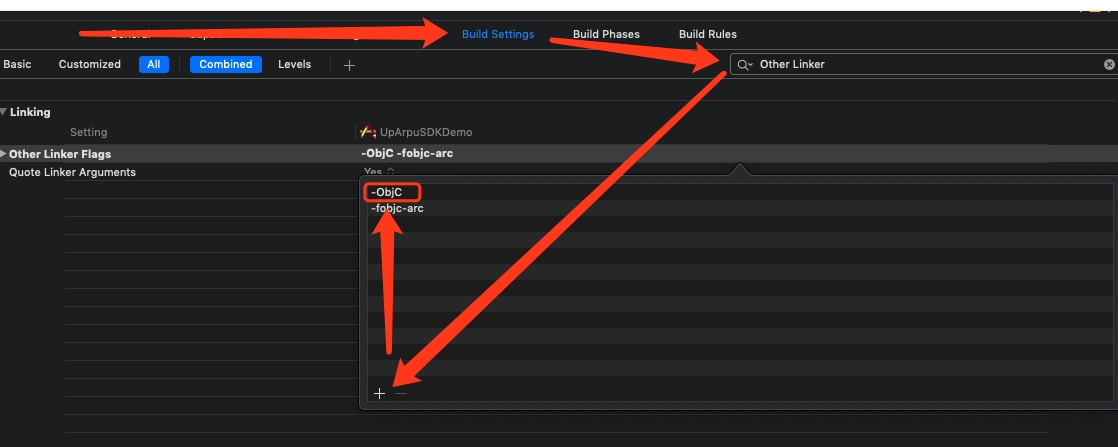
5.2 Set -ObjC
6. Import Android SDK
6.1 Register the Plugin
Register the SDK plugin in the GeneratedPluginRegistrant class of the generated Android project:
public final class GeneratedPluginRegistrant {
  public static void registerWith(@NonNull FlutterEngine flutterEngine) {
    flutterEngine.getPlugins().add(new com.secmtp.flutter.SecmtpSdkPlugin());
  }
}
6.2 Download and Import the Android Native SDK (Version v6.5.12 or Higher Required)
- Please go to the official website download page, select the platforms to be integrated, and click download; after the download is complete, decompress the downloaded Android SDK package.
- (If the package contains a build.gradle file) Copy the content in the build.gradle file of the package to the project's build.gradle file.
- (If the package contains a res directory with files in it) Copy the content in the res directory of the Android SDK package to the corresponding res directory of the project.
7. Configure the Android Project
7.1 AndroidManifest Configuration
- Add the content in the AndroidManifest.xml file of the Android SDK package to the AndroidManifest.xml file of the project.
- If you have integrated AdMob, you must add the following configuration to AndroidManifest.xml (the value must be the ID of the app created in the AdMob backend):
<manifest>
    <application>
        <!-- Sample AdMob App ID: ca-app-pub-3940256099942544~3347511713 -->
        <meta-data android:name="com.google.android.gms.ads.APPLICATION_ID" android:value="ca-app-pub-xxxxxxxxxxxxxxxx~yyyyyyyyyy"></meta-data>
    </application>
</manifest>
For details, refer to the AdMob configuration document: Update your AndroidManifest.xml
7.2 Adaptation for Android 9 and Above
Please refer to: Android Integration and Initialization
7.3 SDK Obfuscation Configuration Instructions
- Flutter SDK Obfuscation Configuration
-keep public class com.secmtp.flutter.**
-keepclassmembers class com.secmtp.flutter.** {
   public *;
}-keep public class com.thinkup.flutter.**
-keepclassmembers class com.thinkup.flutter.** {
public *;
}- Ad Platform Obfuscation Configuration for Android SDK
Please refer to the content of proguard-android.txt in the Android SDK package.
;}.cls-2{fill:%230868f7;}.cls-3{fill:url(%23未命名的渐变_44);}.cls-4{fill:%23333;}%3c/style%3e%3clinearGradient%20id='未命名的渐变_8'%20x1='33.73'%20y1='100.61'%20x2='-0.03'%20y2='-1.06'%20gradientUnits='userSpaceOnUse'%3e%3cstop%20offset='0'%20stop-color='%237ae9fb'/%3e%3cstop%20offset='0.67'%20stop-color='%232b90f8'/%3e%3cstop%20offset='1'%20stop-color='%230868f7'/%3e%3c/linearGradient%3e%3clinearGradient%20id='未命名的渐变_44'%20x1='27.86'%20y1='18.67'%20x2='68.36'%20y2='22.22'%20gradientUnits='userSpaceOnUse'%3e%3cstop%20offset='0'%20stop-color='%235ac7f2'/%3e%3cstop%20offset='1'%20stop-color='%230868f7'/%3e%3c/linearGradient%3e%3c/defs%3e%3cpath%20class='cls-1'%20d='M29,28.74V81.91l-9.51-3.68v0L8.52,74A7.17,7.17,0,0,1,4,67.32V24.54A3.76,3.76,0,0,1,9.08,21Z'/%3e%3cpath%20class='cls-2'%20d='M68.09,78.07a13.15,13.15,0,0,1-17.9,12.06L29,81.91h0V28.74L50.19,37A13.17,13.17,0,0,0,68.08,25.3h0Z'/%3e%3cpath%20class='cls-3'%20d='M68.08,25.3a13.19,13.19,0,0,1-6.73,10.87A13.09,13.09,0,0,1,50.19,37L29,28.74V6A3.76,3.76,0,0,1,34.1,2.52l25.59,9.91A13.22,13.22,0,0,1,68.08,25.3Z'/%3e%3cpath%20class='cls-4'%20d='M129.06,81.76a4.33,4.33,0,0,1-3.19-1.31,4.4,4.4,0,0,1-1.31-3.24V56.86H97.65V77.21a4.36,4.36,0,0,1-1.35,3.2A4.68,4.68,0,0,1,93,81.76a4.32,4.32,0,0,1-3.19-1.31,4.37,4.37,0,0,1-1.32-3.24V27.27A4.58,4.58,0,0,1,89.83,24a4.59,4.59,0,0,1,7.82,3.27V48.15h26.91V27.27A4.58,4.58,0,0,1,125.91,24a4.59,4.59,0,0,1,7.82,3.27V77.21a4.37,4.37,0,0,1-1.36,3.2A4.65,4.65,0,0,1,129.06,81.76Z'/%3e%3cpath%20class='cls-4'%20d='M163.77,81.66c-6.57,0-11.76-1.92-15.44-5.7s-5.54-9.07-5.54-15.74a26.76,26.76,0,0,1,2.09-10.43,17.72,17.72,0,0,1,6.67-8.06,19.15,19.15,0,0,1,10.68-2.95,19,19,0,0,1,10.46,2.8,18.7,18.7,0,0,1,6.55,7.36,22.53,22.53,0,0,1,2.36,10.28A4.51,4.51,0,0,1,177,63.77H152.23a10.8,10.8,0,0,0,3.49,6.65c2,1.68,4.88,2.52,8.66,2.52a22.25,22.25,0,0,0,7.54-1.21c.74-.3,1.55-.67,2.37-1.07a3.75,3.75,0,0,1,1.84-.4,4.09,4.09,0,0,1,3,1.15,4,4,0,0,1,1.12,3,4.38,4.38,0,0,1-2.58,3.82,32.34,32.34,0,0,1-6.36,2.61A28.67,28.67,0,0,1,163.77,81.66ZM172.4,55.9a9.72,9.72,0,0,0-1.63-4.56A9.9,9.9,0,0,0,167,48a10.38,10.38,0,0,0-4.64-1.14,12,12,0,0,0-4.77,1.06,9.54,9.54,0,0,0-4.89,5.66,11.78,11.78,0,0,0-.51,2.3Z'/%3e%3cpath%20class='cls-4'%20d='M193,81.64a4.49,4.49,0,0,1-4.51-4.55V27.28A4.58,4.58,0,0,1,189.84,24a4.48,4.48,0,0,1,3.28-1.36A4.36,4.36,0,0,1,196.35,24a4.46,4.46,0,0,1,1.31,3.31V77.09a4.34,4.34,0,0,1-1.35,3.2A4.67,4.67,0,0,1,193,81.64Z'/%3e%3cpath%20class='cls-4'%20d='M263.79,81.71a5.7,5.7,0,0,1-4.2-1.74,5.76,5.76,0,0,1-1.73-4.19V27.37a4.58,4.58,0,0,1,1.35-3.27A4.59,4.59,0,0,1,267,27.37V72.53h24a4.58,4.58,0,0,1,3.27,7.82A4.66,4.66,0,0,1,291,81.71Z'/%3e%3cpath%20class='cls-4'%20d='M424.48,81.74a4.71,4.71,0,0,1-2.71-.88,5.43,5.43,0,0,1-1-1l-.07-.09-12.41-17-5.41,5v9.44a4.31,4.31,0,0,1-1.36,3.19,4.66,4.66,0,0,1-3.3,1.36A4.29,4.29,0,0,1,395,80.42a4.36,4.36,0,0,1-1.32-3.23V27.37A4.58,4.58,0,0,1,395,24.1a4.52,4.52,0,0,1,6.58.12,4.54,4.54,0,0,1,1.24,3.15V56.31l17.72-16.38.05,0a4.8,4.8,0,0,1,2.94-1.11,4.4,4.4,0,0,1,3.27,1.2,4.57,4.57,0,0,1,1.2,3.27,4.44,4.44,0,0,1-.77,2.33,7.45,7.45,0,0,1-1.43,1.65l-11,9.64,13.34,17.68a5,5,0,0,1,1,2.71,4.12,4.12,0,0,1-1.36,3.24A4.64,4.64,0,0,1,424.48,81.74Z'/%3e%3cpath%20class='cls-4'%20d='M317.93,81.76a21.5,21.5,0,1,1,21.17-21.5A21.37,21.37,0,0,1,317.93,81.76Zm0-34.1a12.61,12.61,0,1,0,12.42,12.6A12.52,12.52,0,0,0,317.93,47.66Z'/%3e%3cpath%20class='cls-4'%20d='M212.18,101.22a4.12,4.12,0,0,1-3.05-1.26,4.17,4.17,0,0,1-1.26-3.1V43.34a4.37,4.37,0,0,1,1.3-3.14,4.26,4.26,0,0,1,3.13-1.3,4.19,4.19,0,0,1,3.1,1.26,4.32,4.32,0,0,1,1.26,3.16,20.77,20.77,0,0,1,13-4.54,21.51,21.51,0,0,1,0,43,20.51,20.51,0,0,1-13-4.57V96.86a4.15,4.15,0,0,1-1.3,3.06A4.5,4.5,0,0,1,212.18,101.22Zm17.43-53.63c-6.23,0-12.93,4.11-12.93,12.72a12.73,12.73,0,0,0,25.46,0A12.71,12.71,0,0,0,229.61,47.59Z'/%3e%3cpath%20class='cls-4'%20d='M365.76,81.76a21.5,21.5,0,1,1,21.18-21.5A21.37,21.37,0,0,1,365.76,81.76Zm0-34.1a12.61,12.61,0,1,0,12.42,12.6A12.52,12.52,0,0,0,365.76,47.66Z'/%3e%3c/svg%3e)