
SPM Integration
1. Prerequisites
- The latest version of Xcode is recommended
- Register and sign in to your Topon account, then add an app in App Management
You can download or update Xcode from the App Store, or sign in to the Apple Developer Resource Center to download a specific version.
2. Import the SDK into the project
Topon SDK version 6.5.86 and later supports SPM integration
We provide the following two ways to import the Topon iOS SDK:
- Swift Package Manager / SPM (preferred)
- Download and import manually
2.1 Obtain the SDK
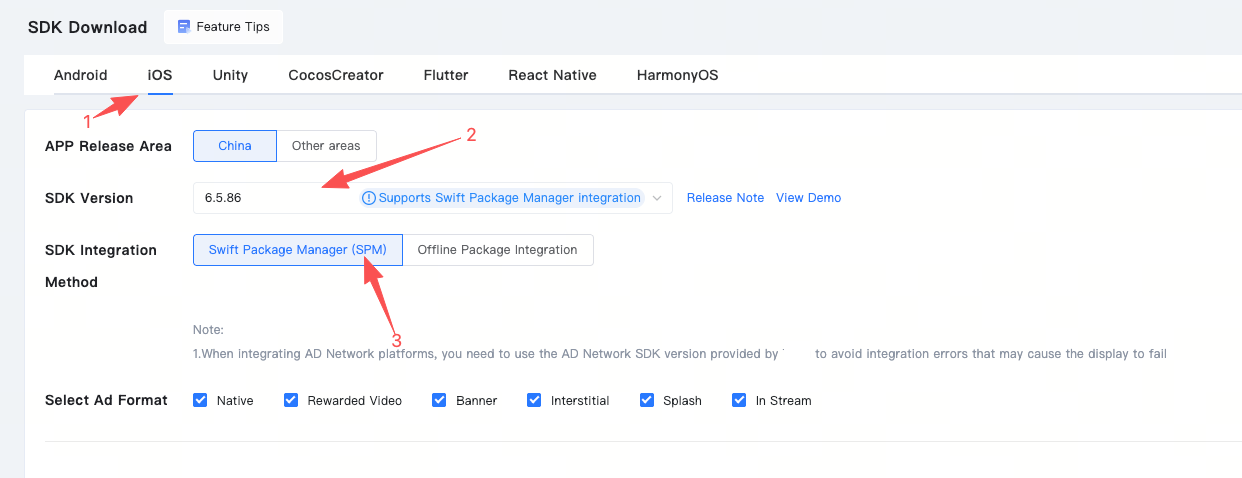
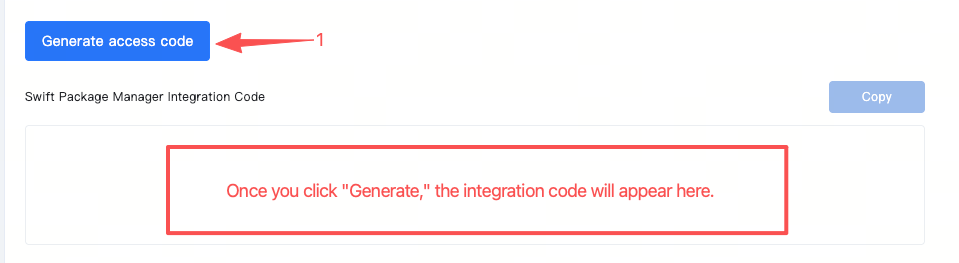
Click here to go to the SDK Download Center. You can follow the steps in the images below to select and generate the SPM code according to your needs.
- When selecting platforms, you may find that some platforms do not support SPM. In this case, we recommend importing the corresponding Adapter and third-party SDK by manually downloading the offline packages.
- After generating the relevant code, please do not leave the SDK Download Center webpage, as the subsequent integration steps will also use its contents.

2.2 Integrate the SDK into the project
2.2.1 Add the SDK to the project in batches using local SPM (recommended)
-
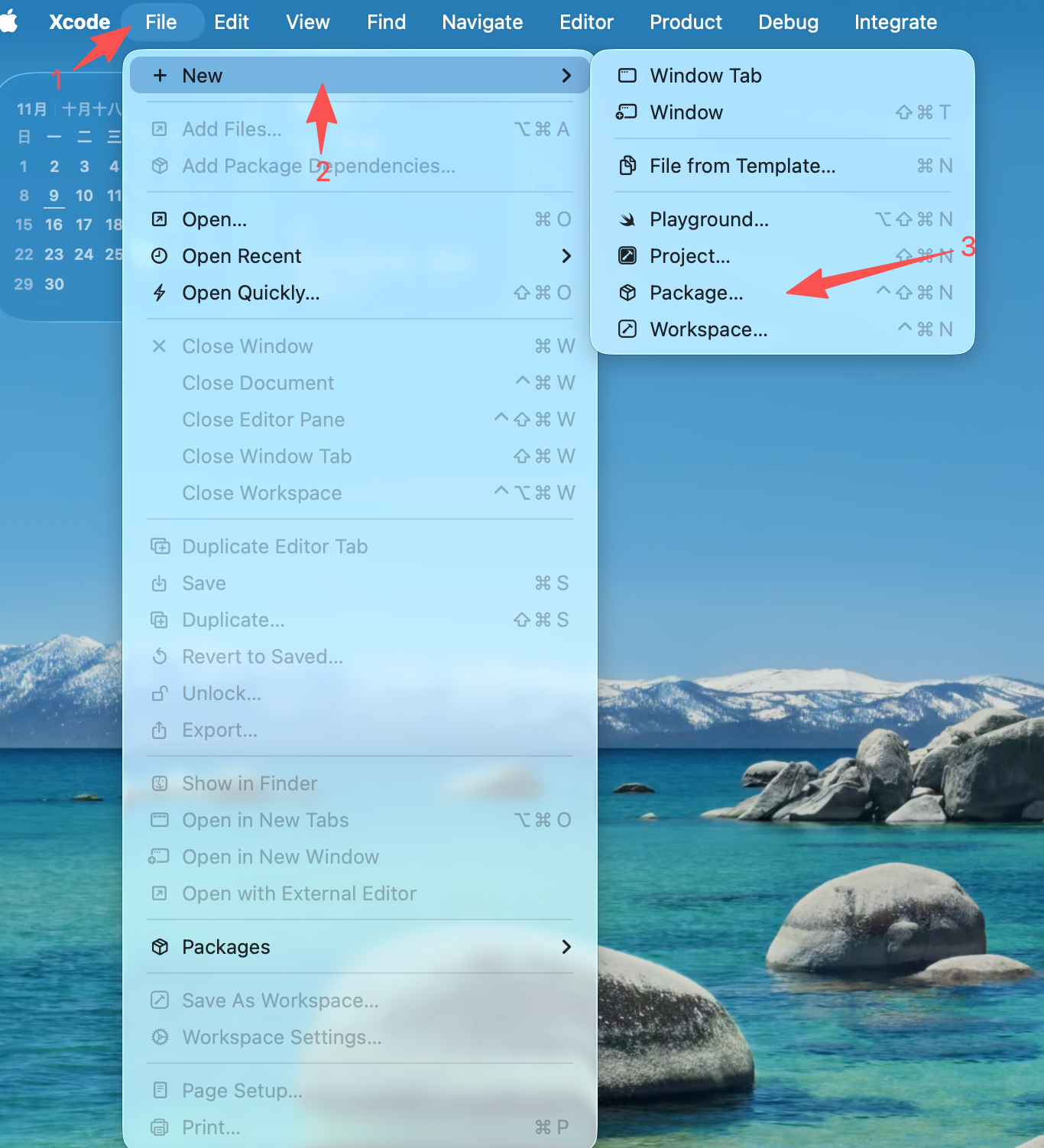
Open the project and select File > New > Package.. in Xcode.
-
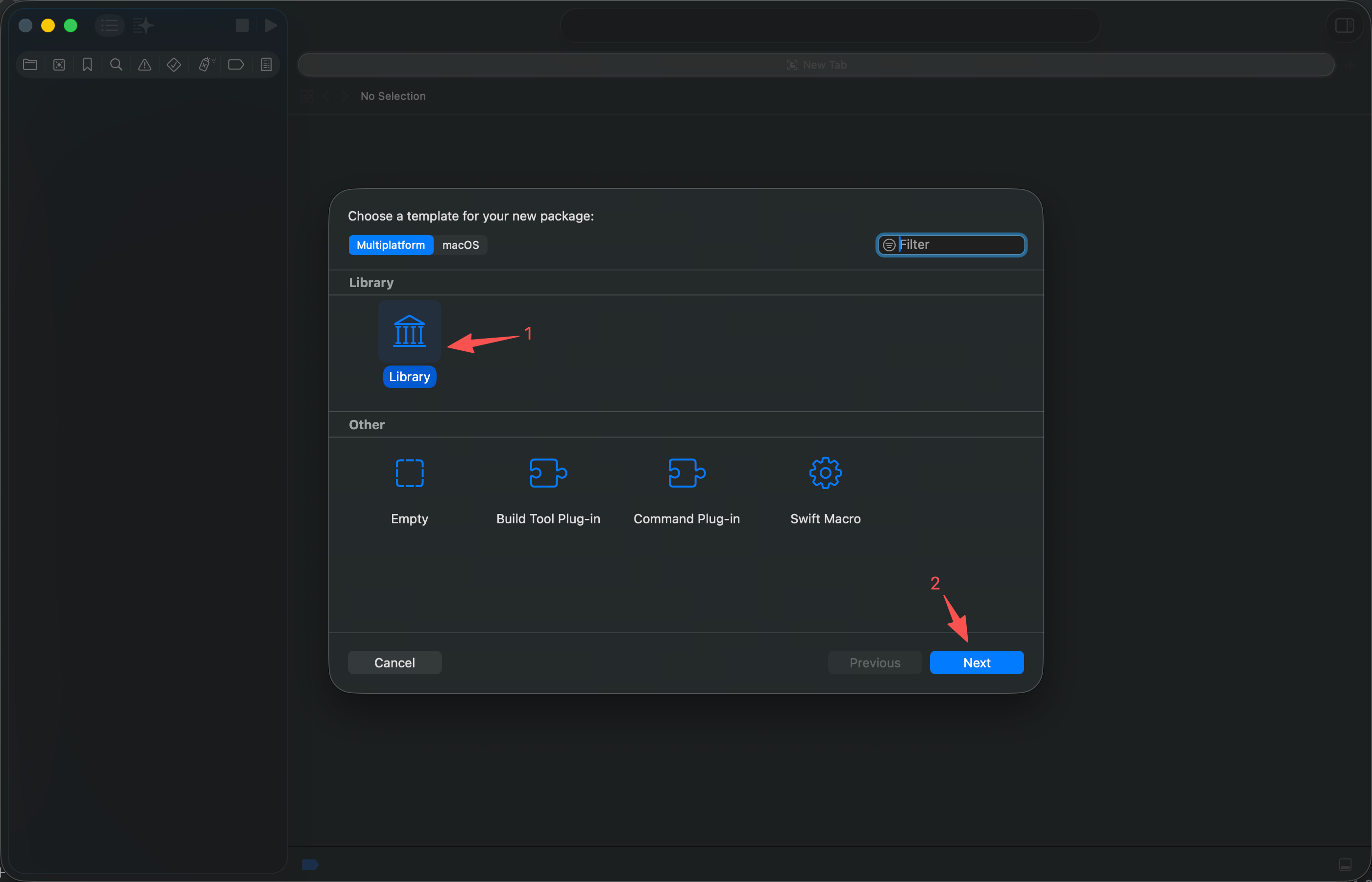
Select Library, then click Next.
-
Click Next directly, then save the Library.
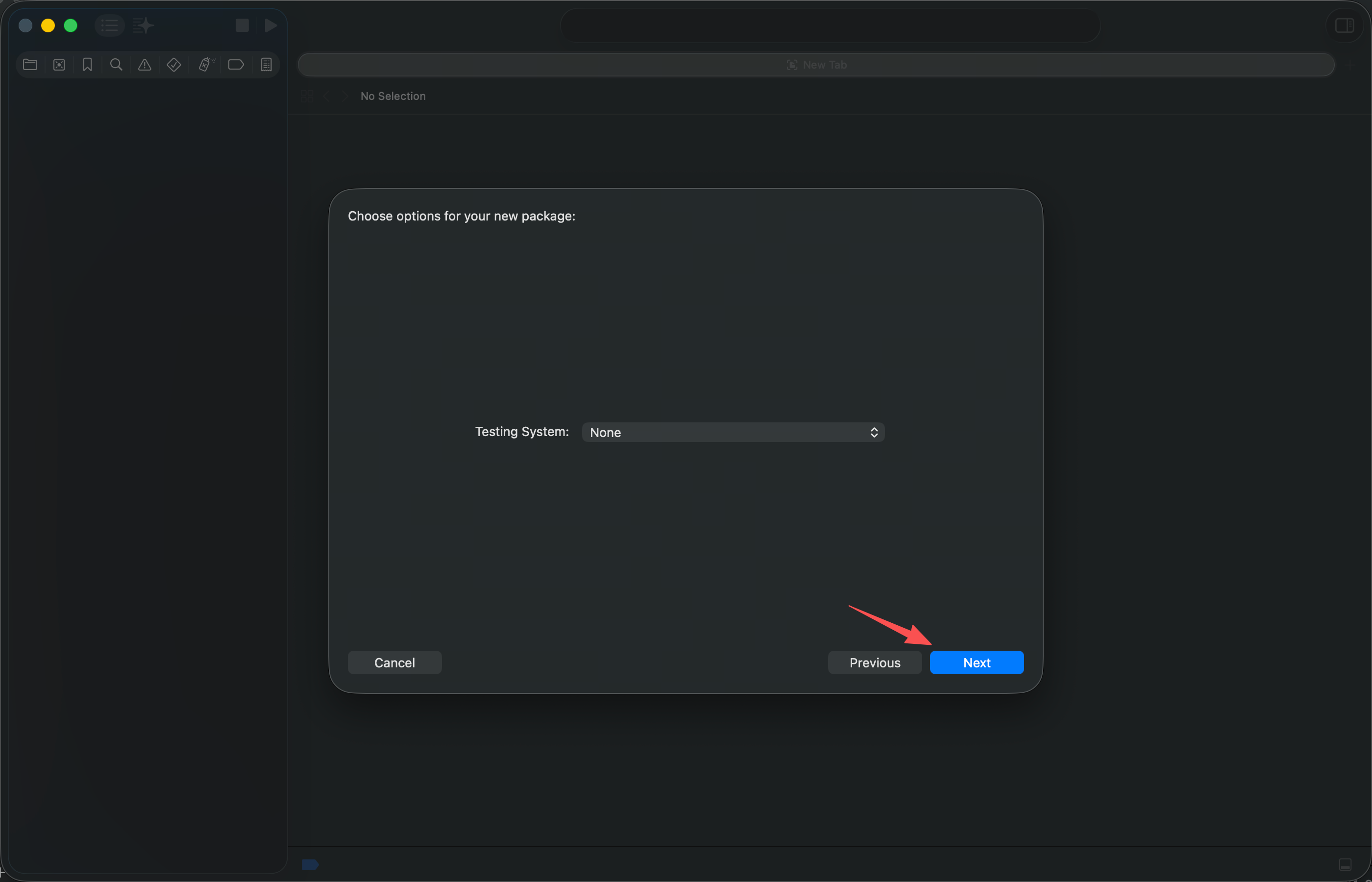
-
Change the name of the local SPM library, and place the generated local SPM library folder in the project root directory.
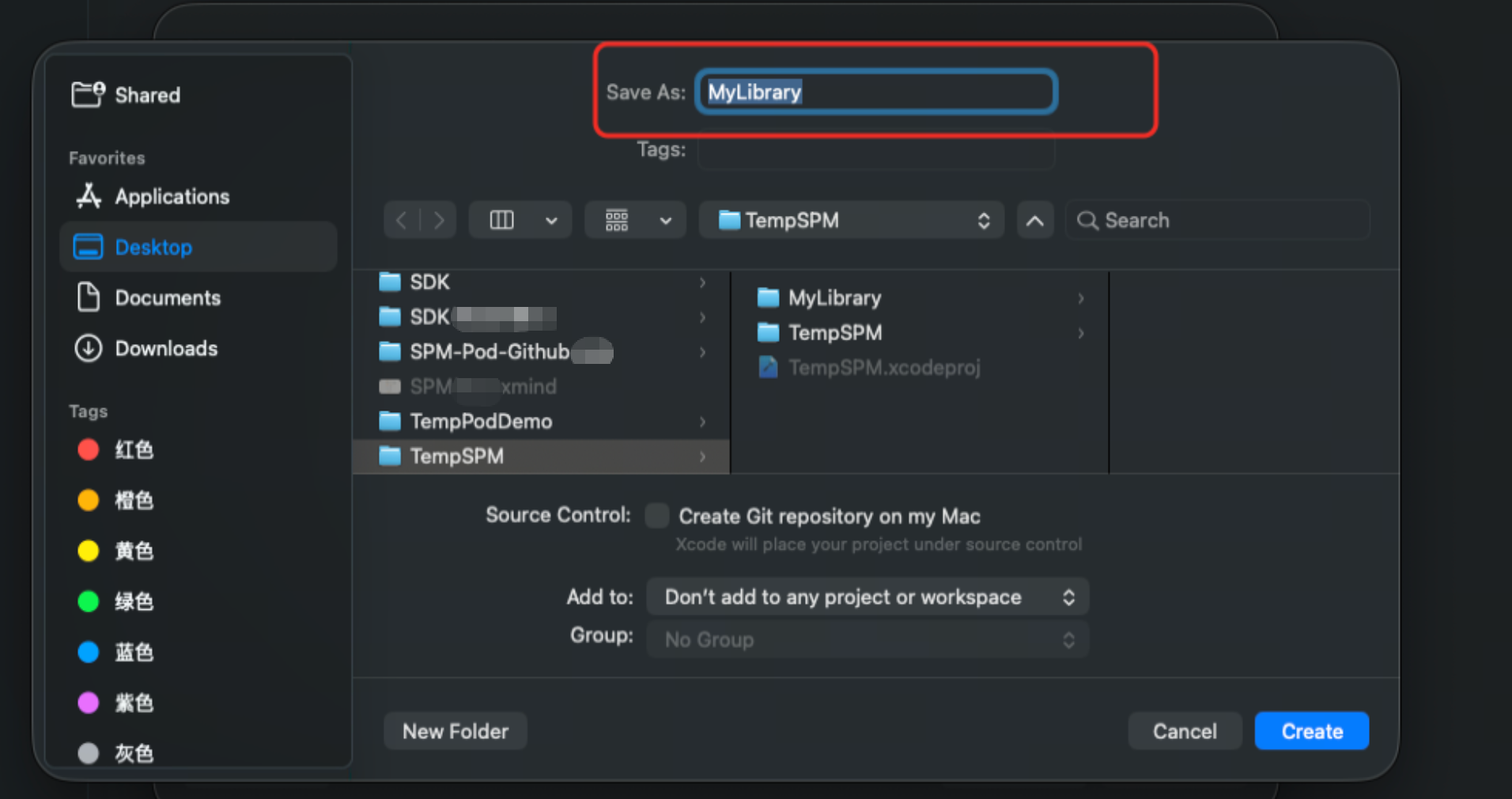
-
Open the project, select the main project, and choose File > Add Files to "XXXDemo" to link the local SPM folder to the project. After it is added, the main project will contain an SPM dependency library.
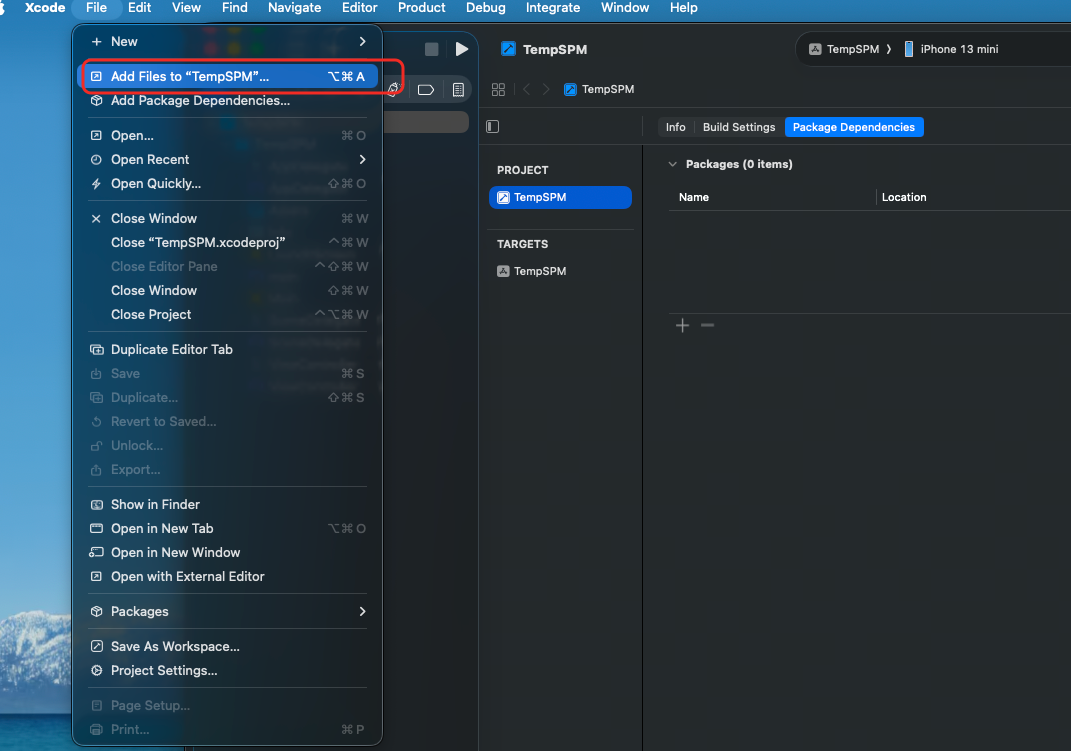
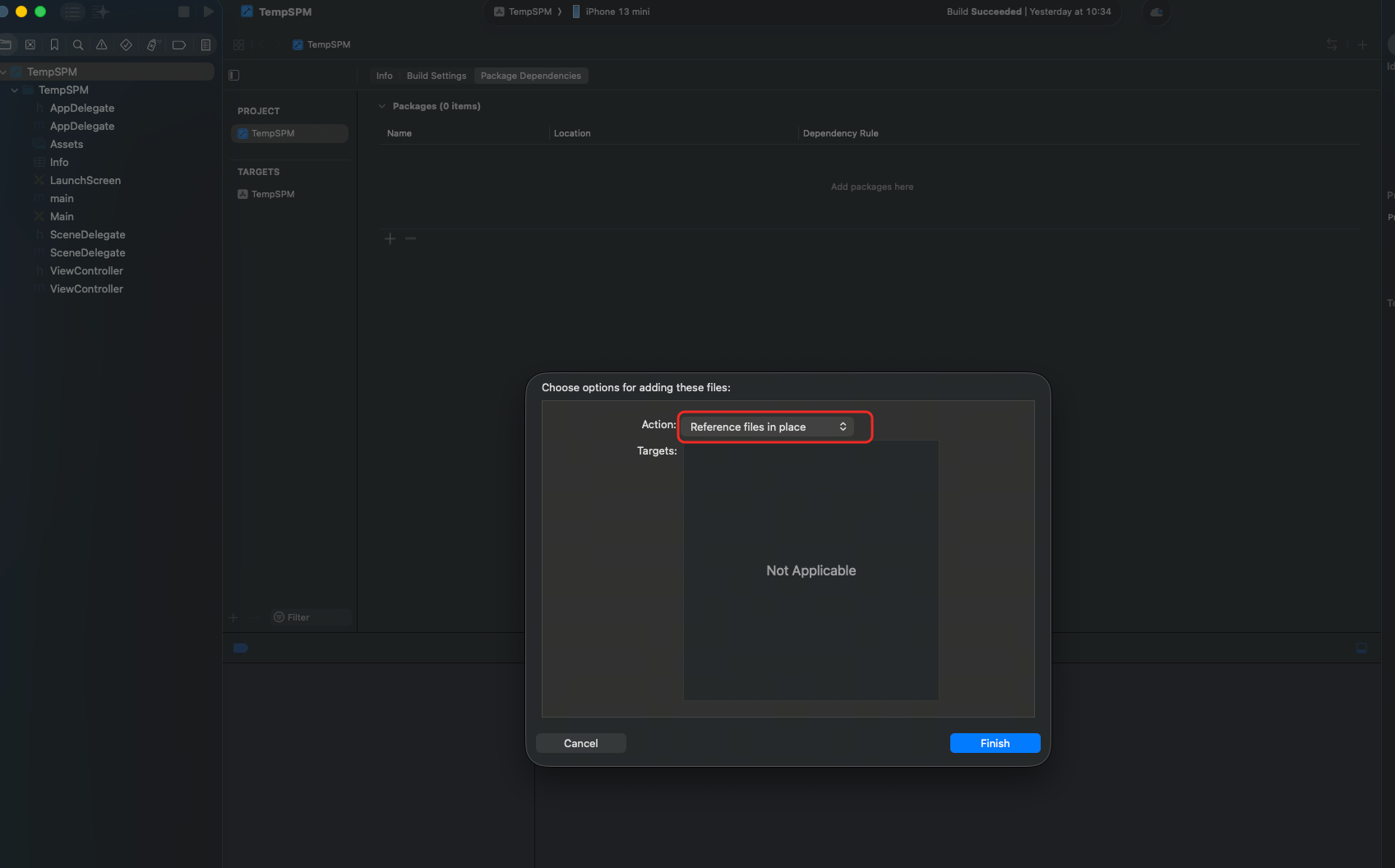
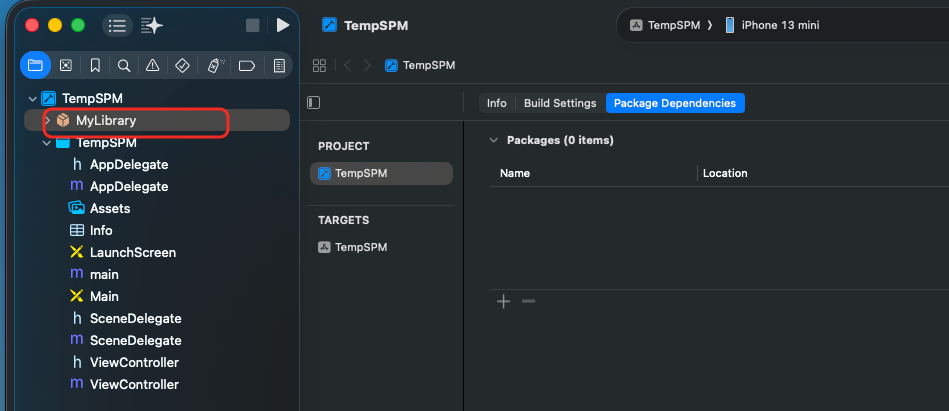
-
Add the SPM dependency to the main project.
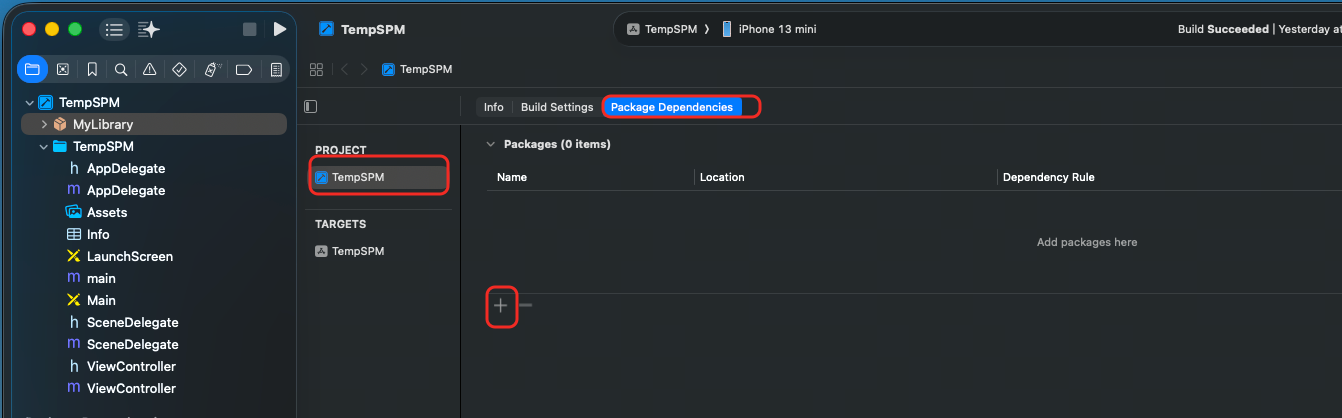
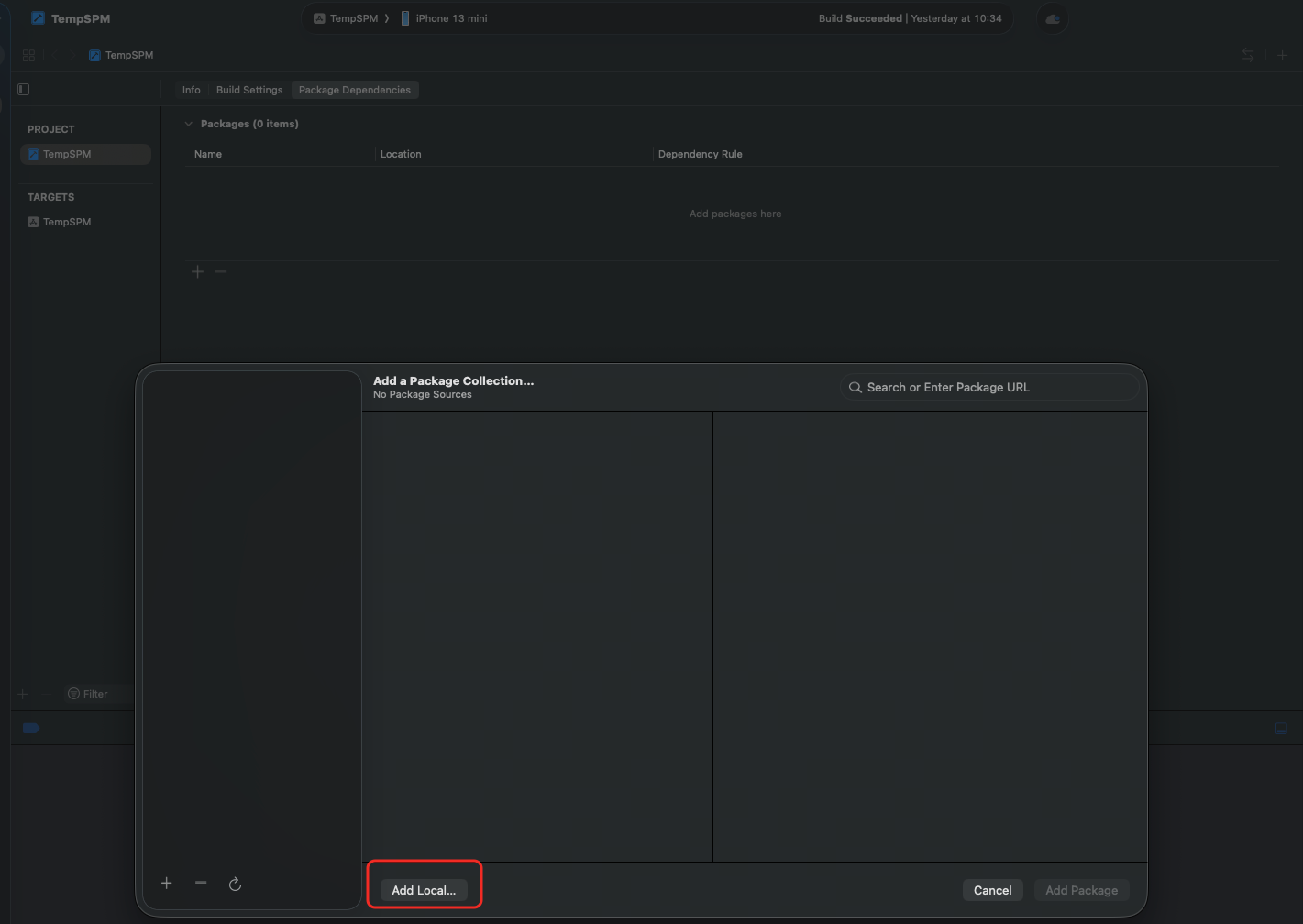
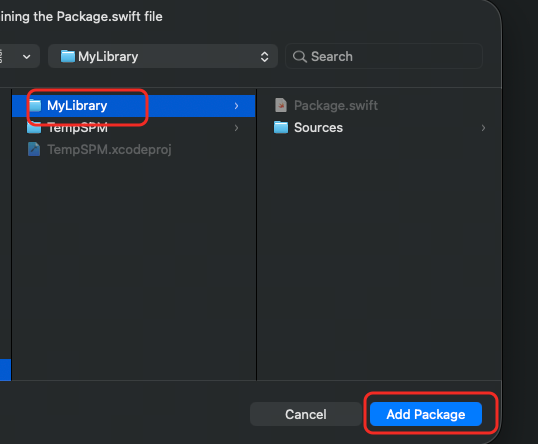
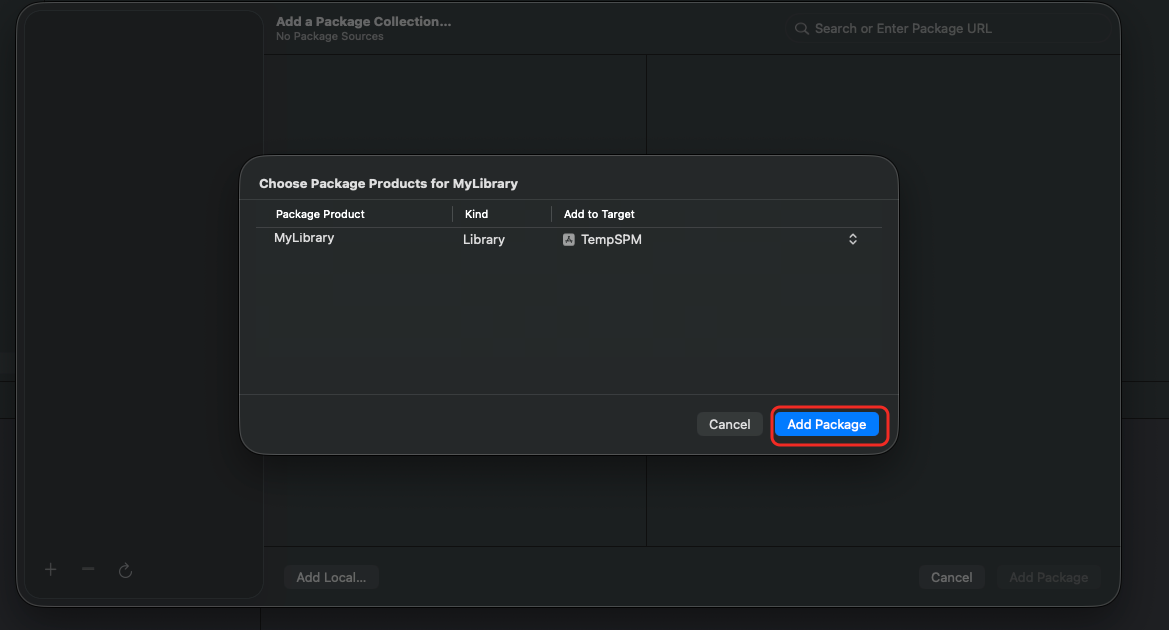
-
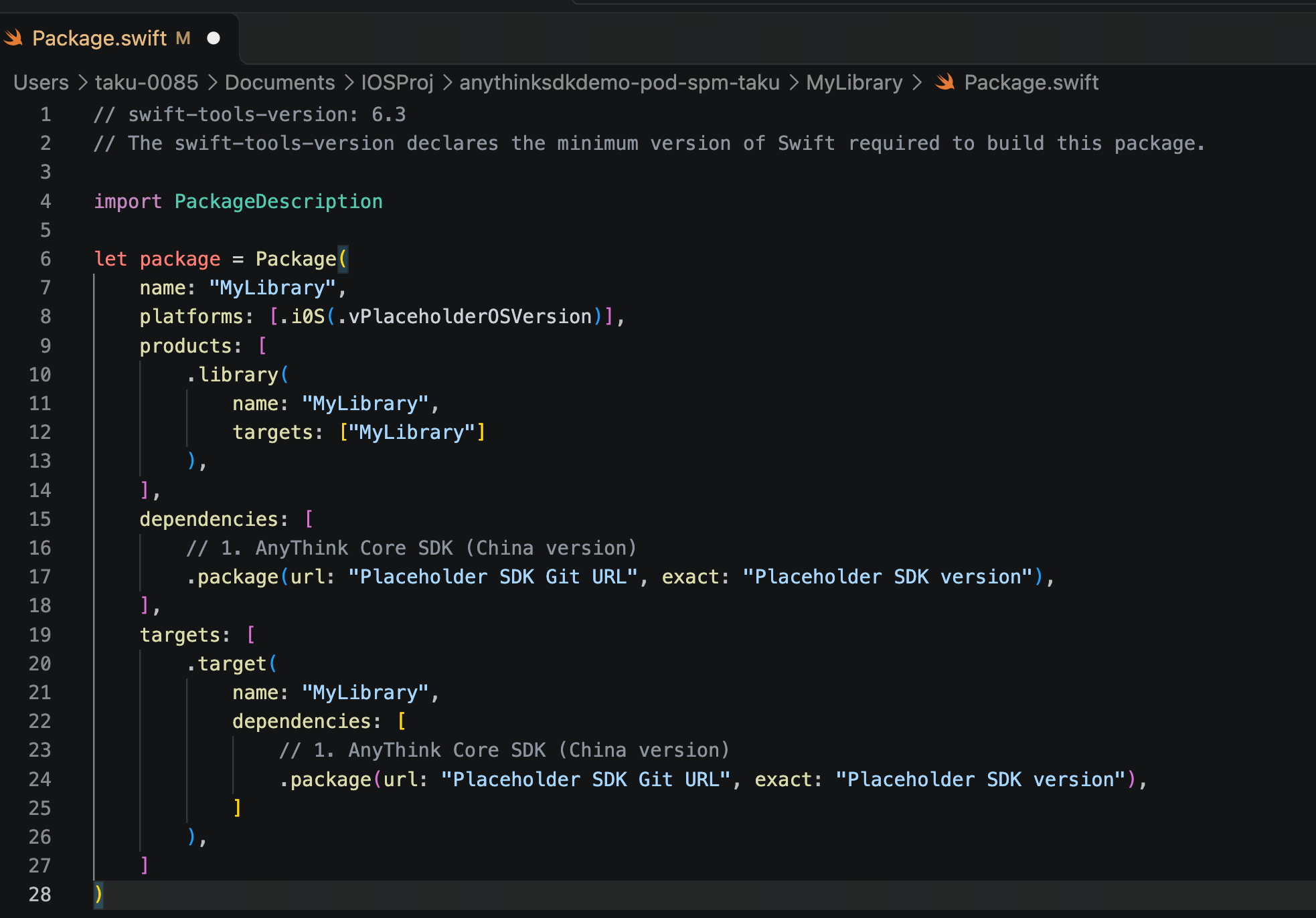
Open
Package.swift. Copy all .package(url: "xxx", exact:"xxx") and .product(name: "xxx", package: "xxx") entries from the code generated by the SDK Download Center into the specified section of the localPackage.swiftfile.
-
Fetch the SPM dependencies.
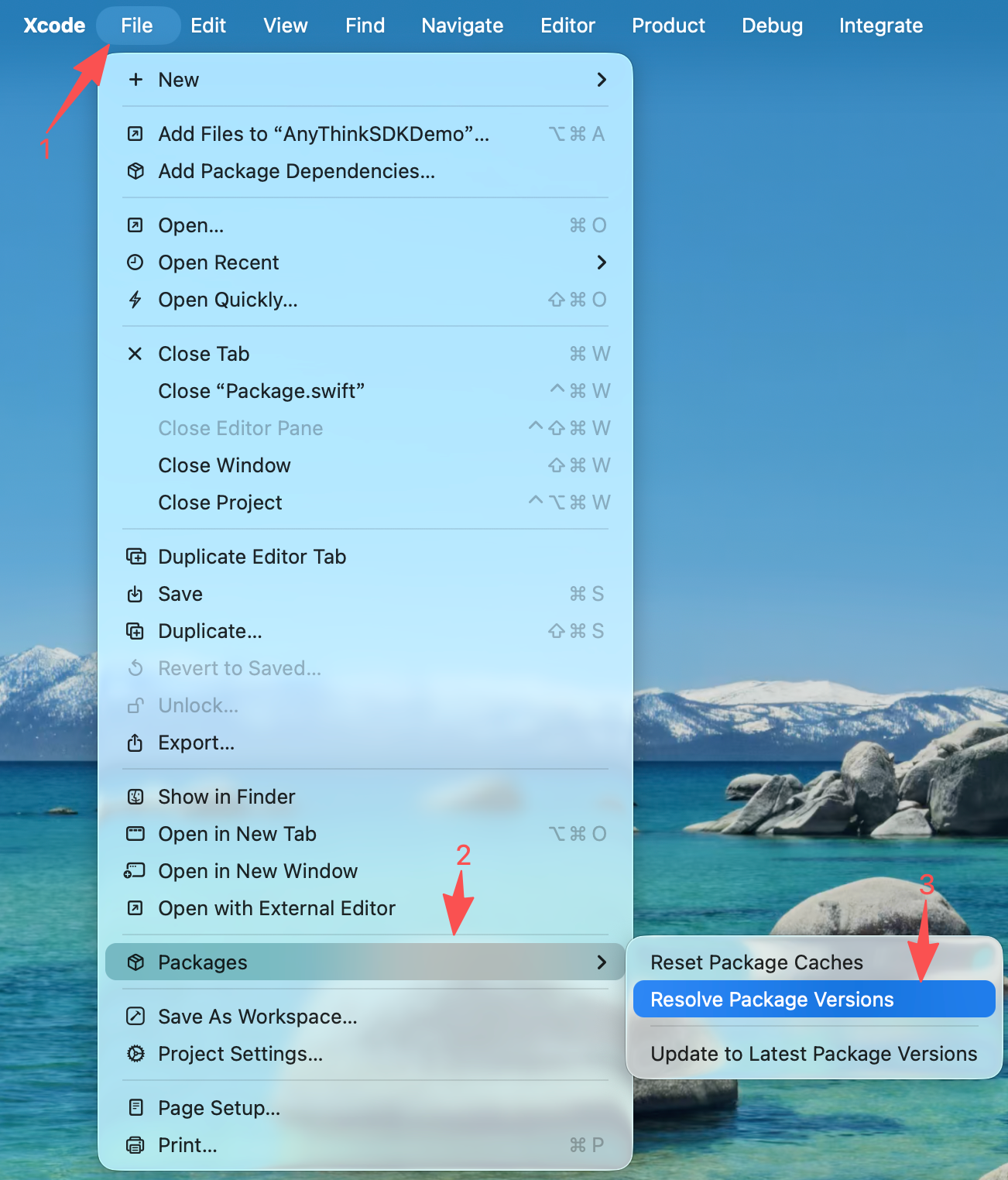
2.2.2 Add the SDK to the project by adding Packages
-
Open the project and select File > Add Package Dependencies... in Xcode.
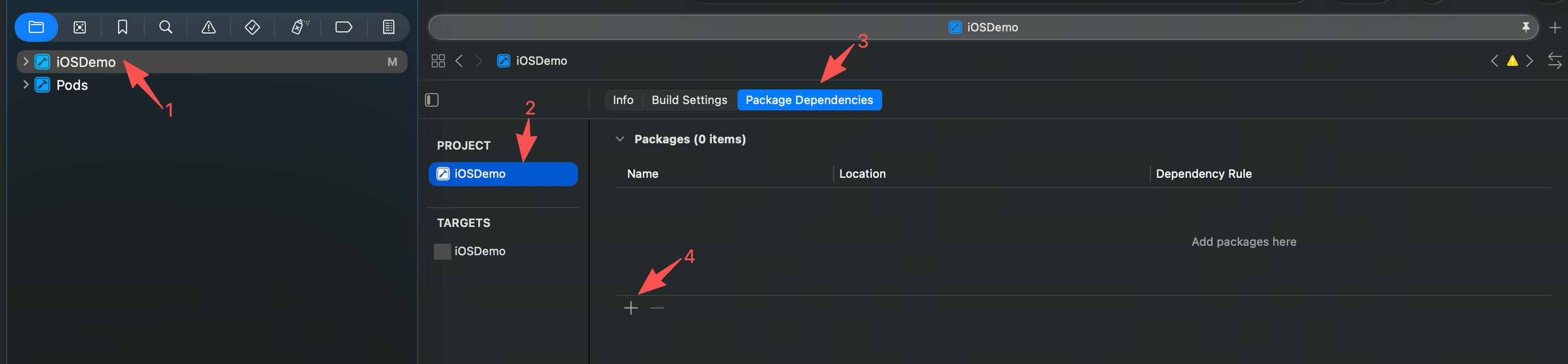
-
Enter the SPM repository URL provided by Topon.
-
Select the version required by the SDK. When the release version must be locked exactly, select Exact Version.
-
Select the required Package products and add them to the App Target that uses the SDK. If an Extension also uses the SDK directly, add them to the corresponding Target as well.
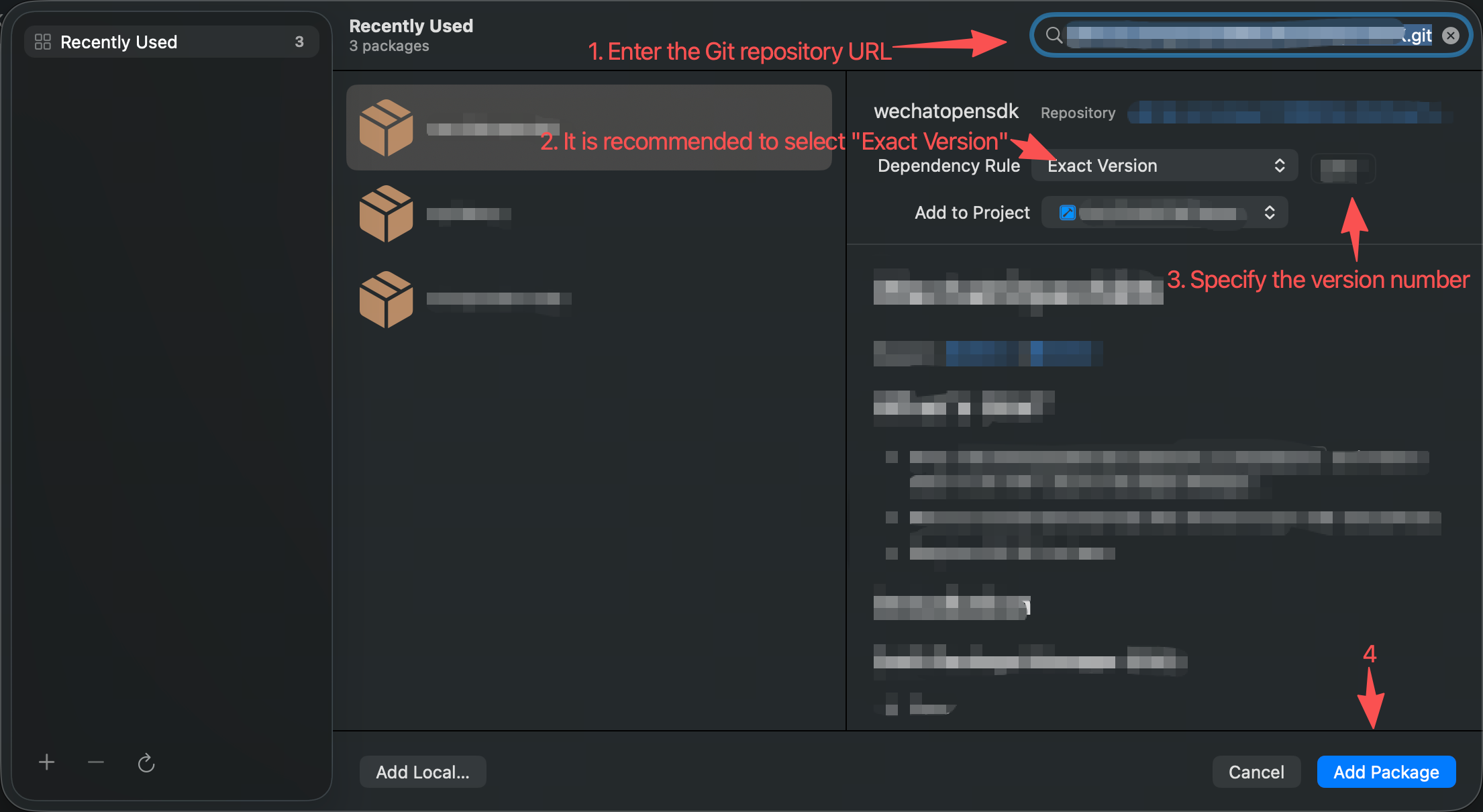
-
Add the required Adapters in the same way. If an Adapter's Package already includes the products it depends on, follow the actual dependency relationship and SDK integration instructions to avoid adding them repeatedly.
After adding them, confirm the versions under Package Dependencies in the project, and confirm that the required products are associated under General > Frameworks, Libraries, and Embedded Content in the Target.
3. Update the configuration
3.1 Modify the Xcode project Build Settings (refer to the image below).
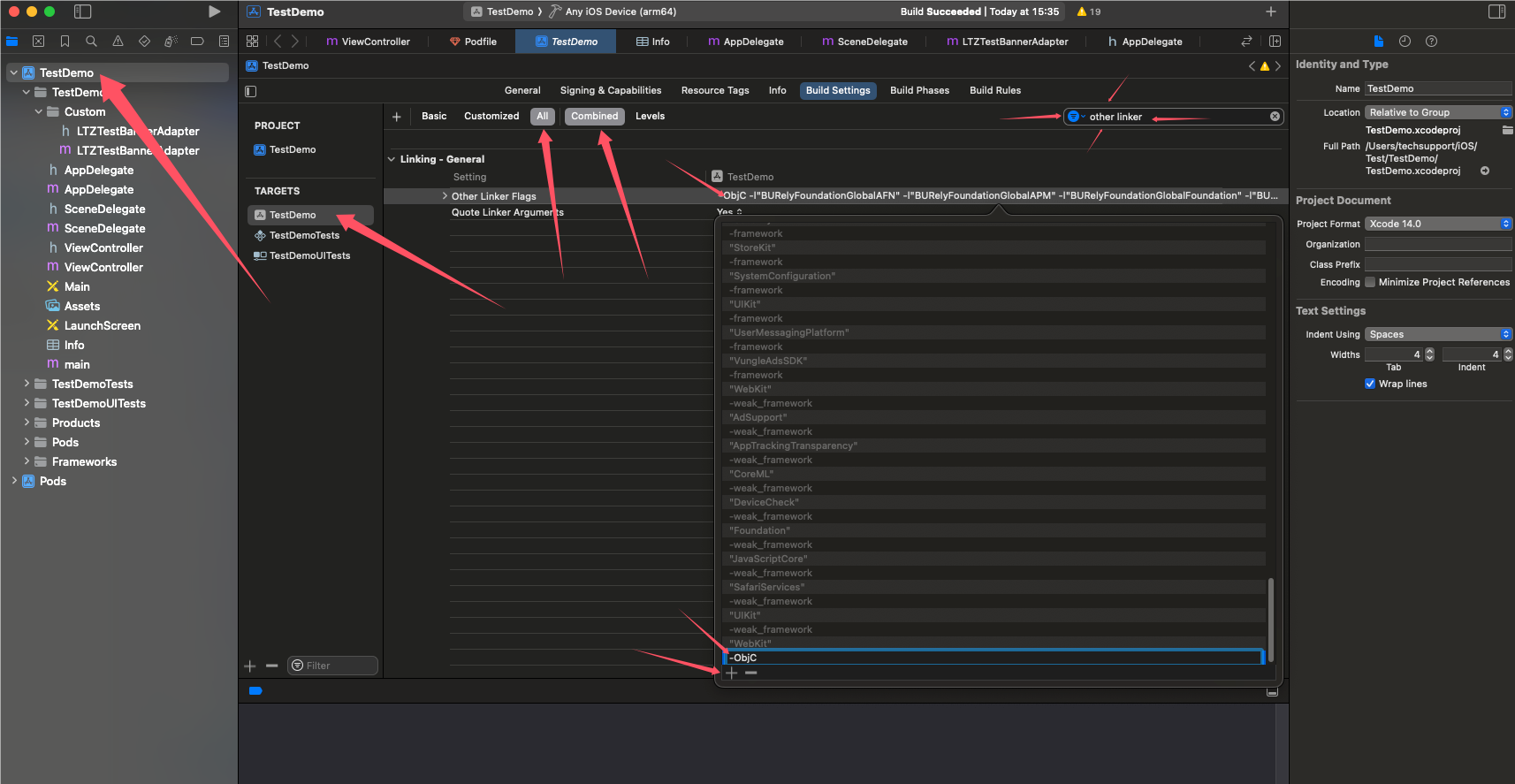
3.2 Open Info.plist
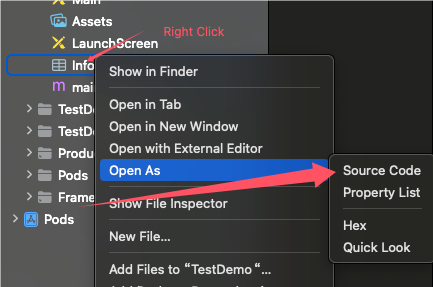
3.3 Add the SKAdNetworkItems key
The SKAdNetwork ID for UnityAds is different for every project. If you select this ad platform, use the value generated in the UnityAds console and check it in the UnityAds management console.
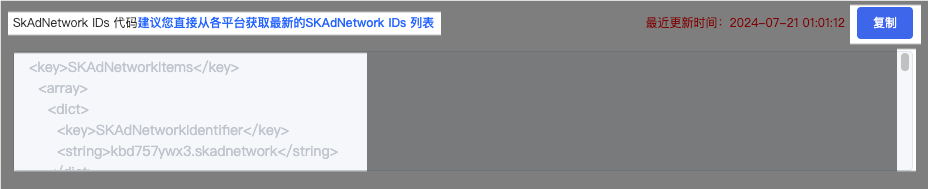
Return to the "SDK Download Center" webpage opened above, and add the contents listed in the "SKAdNetwork IDs code" section to your Info.plist file. Refer to the image below:
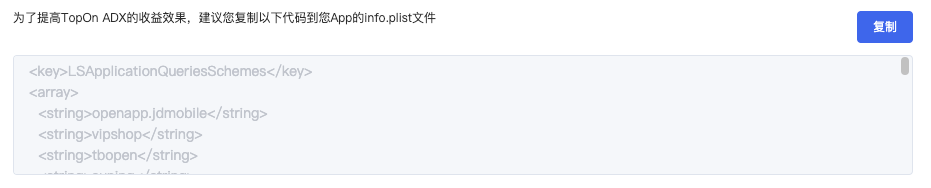
3.4 Add the LSApplicationQueriesSchemes key
Return to the "SDK Download Center" webpage opened above, or copy the code below directly, and add the contents listed in the corresponding section to your Info.plist file. Refer to the image below:
3.5 Add the NSUserTrackingUsageDescription key
Starting with iOS 14.5, apps can access the user's IDFA data and serve targeted ads only after obtaining the user's explicit permission.
IDFA is unavailable before the app uses the App Tracking Transparency framework to request tracking authorization from the end user. If an app does not make this request, the IDFA returned is a string consisting entirely of zeros.
<key>NSUserTrackingUsageDescription</key>
<string>Change this to the permission request description you want users to see. It can be localized.</string>
3.6 Add the NSAppTransportSecurity key
After iOS 10, when the Allow Arbitrary Loads in Web Content key exists, the Allow Arbitrary Loads setting is ignored.
<key>NSAppTransportSecurity</key>
<dict>
	<key>NSAllowsArbitraryLoads</key>
	<true/>
</dict>
3.7 Add the GADApplicationIdentifier key for the AdMob platform
Add this key only if you selected the AdMob platform. For more information, please go here.
<key>GADApplicationIdentifier</key>
<string>Your GADApplicationIdentifier </string>
<!-- Example format for the value above: ca-app-pub-9488501426181082~7219780494 -->
4. Request app tracking authorization from users to obtain IDFA
Before integrating this section, you should understand that you need to explain to users in detail the relationship between the system permissions required by the Topon SDK and each business function, and explain when the permission request will be made.
For the optional system permissions that can be requested by the Topon iOS SDK, you can refer to the table below to learn more about the relationship between each permission and the relevant business functions, as well as when to request it. Not requesting a relevant permission will affect its corresponding function, so configure it reasonably based on your actual business needs.
List of iOS application permissions:
| Permission | Function | Use and purpose | When it is called |
|---|---|---|---|
| NSUserTrackingUsageDescription | [Optional] Obtain the device identifier to identify device information | Serve ads and prevent fraud | The developer calls it when invoking an SDK function that requires this permission. Request it when the developer needs to adjust ad monetization strategies and data analysis services based on device information. |
After understanding the above, you need to use App Tracking Transparency to request app tracking authorization from users.
- Before using the method below, you need to set the NSUserTrackingUsageDescription key value in the Info.plist file. Click here for details.
- If your project needs to support GDPR or Google UMP, go here for configuration. You do not need to add the code below.
// Import header files
#import <AppTrackingTransparency/AppTrackingTransparency.h>
#import <AdSupport/AdSupport.h>
#import <AnyThinkSDK/AnyThinkSDK.h>

// If using AppDelegate
@implementation AppDelegate

- (void)applicationDidBecomeActive:(UIApplication *)application {
    if (@available(iOS 14, *)) {
        // iOS 14
        [ATTrackingManager requestTrackingAuthorizationWithCompletionHandler:^(ATTrackingManagerAuthorizationStatus status) {

        }];
    } else {
        // Can be obtained directly
        NSString * idfaStr = [ASIdentifierManager sharedManager].advertisingIdentifier.UUIDString;
    }
}

@end
On iOS 15 and later, this API displays the authorization prompt only when the app state is
UIApplicationStateActive. If another permission request is waiting for user confirmation, the authorization prompt will not be displayed.
5. Enable debug logs
- (BOOL)application:(UIApplication *)application didFinishLaunchingWithOptions:(NSDictionary *)launchOptions {

    //....
    // Enable logs
    [ATAPI setLogEnabled:YES];//Turn on debug logs
    //....

    return YES;
}
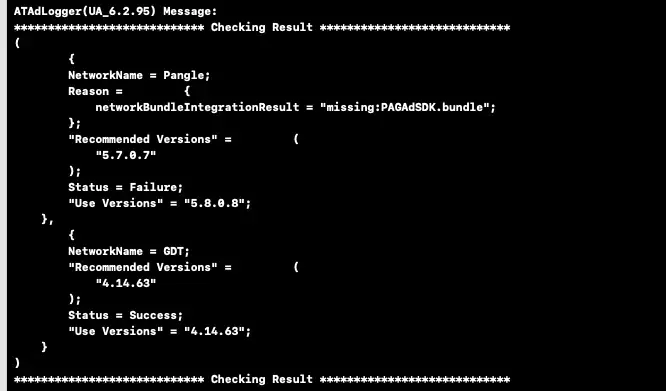
6. Verify SDK integration
You can check whether the SDK integration for each ad platform is working correctly based on the logs output by this method.
Please note that this function must be removed from the release build.
- (BOOL)application:(UIApplication *)application didFinishLaunchingWithOptions:(NSDictionary *)launchOptions {

    //....
    // Enable logs
    [ATAPI setLogEnabled:YES];//Turn on debug logs

    // After enabling logs, call the integration check method
    [ATAPI integrationChecking];

    return YES;
}
Example output:
7. Initialize the SDK
⚠️ Important (compliance required)
The initialization method must satisfy all three of the following conditions at the same time. None of them can be omitted:
- Call it after the user agrees to the privacy policy. If your app needs to display the privacy policy and request the user's consent at first launch, refer to Topon Privacy Policy and Privacy Compliance.
- Do not call it early during app launch. Do not place it in startup paths such as
application:didFinishLaunchingWithOptions:orviewDidLoad.- Use it as a prerequisite for ad loading. In the same call chain, complete initialization first and then execute load; do not continue loading ads when initialization has not succeeded.
💡 Tip
- Can be called repeatedly: Initialization is idempotent. After the SDK has been initialized, calling it again returns success directly. Therefore, it is safe to place initialization before every ad load, and you do not need to add your own "initialize only once" flag.
- AppID / AppKey: Obtain these from the app information in the Topon console. iOS and Android use different values; do not mix them.
- Log switch:
setLogEnabled:outputs IDFA and device information and is intended only for integration debugging. Wrap it with#if DEBUG; it must not be included in the Release build.
7.1 Example code
#import <AnyThinkSDK/AnyThinkSDK.h>

@interface AdManager : NSObject

- (BOOL)configureAdSDK;
- (void)loadAd;

@end

@implementation AdManager

/// Initialize the ad SDK
/// Idempotent: repeated calls after SDK initialization return success directly, so this can safely be placed before every ad load
/// @return Whether initialization succeeded; do not continue loading ads when NO is returned
- (BOOL)configureAdSDK {
#if DEBUG
    // Outputs IDFA and device information for debugging only; it must not be included in the Release build
    [ATAPI setLogEnabled:YES];
#endif

    NSError *error = nil;
    BOOL success = [[ATAPI sharedInstance] startWithAppID:@"Your AppID"
                                                  appKey:@"Your AppKey"
                                                   error:&error];

    if (!success) {
        NSLog(@"[Topon] SDK initialization failed domain=%@ code=%ld msg=%@",
              error.domain,
              (long)error.code,
              error.userInfo[@"msg"]);
    }
    return success;
}

/// Load ads
/// Prerequisite: the user has agreed to the privacy policy
- (void)loadAd {
    // Initialization is a prerequisite for load: initialize first, then load after it succeeds
    if (![self configureAdSDK]) {
        return;
    }

#if DEBUG
    // Third-party platform integration self-check, for debugging only and not required for initialization
    [ATAPI integrationChecking];
#endif

    // Execute ad loading after initialization succeeds
    // [self.bannerView loadAd:@"Your PlacementID"];
}

@end;}.cls-2{fill:%230868f7;}.cls-3{fill:url(%23未命名的渐变_44);}.cls-4{fill:%23333;}%3c/style%3e%3clinearGradient%20id='未命名的渐变_8'%20x1='33.73'%20y1='100.61'%20x2='-0.03'%20y2='-1.06'%20gradientUnits='userSpaceOnUse'%3e%3cstop%20offset='0'%20stop-color='%237ae9fb'/%3e%3cstop%20offset='0.67'%20stop-color='%232b90f8'/%3e%3cstop%20offset='1'%20stop-color='%230868f7'/%3e%3c/linearGradient%3e%3clinearGradient%20id='未命名的渐变_44'%20x1='27.86'%20y1='18.67'%20x2='68.36'%20y2='22.22'%20gradientUnits='userSpaceOnUse'%3e%3cstop%20offset='0'%20stop-color='%235ac7f2'/%3e%3cstop%20offset='1'%20stop-color='%230868f7'/%3e%3c/linearGradient%3e%3c/defs%3e%3cpath%20class='cls-1'%20d='M29,28.74V81.91l-9.51-3.68v0L8.52,74A7.17,7.17,0,0,1,4,67.32V24.54A3.76,3.76,0,0,1,9.08,21Z'/%3e%3cpath%20class='cls-2'%20d='M68.09,78.07a13.15,13.15,0,0,1-17.9,12.06L29,81.91h0V28.74L50.19,37A13.17,13.17,0,0,0,68.08,25.3h0Z'/%3e%3cpath%20class='cls-3'%20d='M68.08,25.3a13.19,13.19,0,0,1-6.73,10.87A13.09,13.09,0,0,1,50.19,37L29,28.74V6A3.76,3.76,0,0,1,34.1,2.52l25.59,9.91A13.22,13.22,0,0,1,68.08,25.3Z'/%3e%3cpath%20class='cls-4'%20d='M129.06,81.76a4.33,4.33,0,0,1-3.19-1.31,4.4,4.4,0,0,1-1.31-3.24V56.86H97.65V77.21a4.36,4.36,0,0,1-1.35,3.2A4.68,4.68,0,0,1,93,81.76a4.32,4.32,0,0,1-3.19-1.31,4.37,4.37,0,0,1-1.32-3.24V27.27A4.58,4.58,0,0,1,89.83,24a4.59,4.59,0,0,1,7.82,3.27V48.15h26.91V27.27A4.58,4.58,0,0,1,125.91,24a4.59,4.59,0,0,1,7.82,3.27V77.21a4.37,4.37,0,0,1-1.36,3.2A4.65,4.65,0,0,1,129.06,81.76Z'/%3e%3cpath%20class='cls-4'%20d='M163.77,81.66c-6.57,0-11.76-1.92-15.44-5.7s-5.54-9.07-5.54-15.74a26.76,26.76,0,0,1,2.09-10.43,17.72,17.72,0,0,1,6.67-8.06,19.15,19.15,0,0,1,10.68-2.95,19,19,0,0,1,10.46,2.8,18.7,18.7,0,0,1,6.55,7.36,22.53,22.53,0,0,1,2.36,10.28A4.51,4.51,0,0,1,177,63.77H152.23a10.8,10.8,0,0,0,3.49,6.65c2,1.68,4.88,2.52,8.66,2.52a22.25,22.25,0,0,0,7.54-1.21c.74-.3,1.55-.67,2.37-1.07a3.75,3.75,0,0,1,1.84-.4,4.09,4.09,0,0,1,3,1.15,4,4,0,0,1,1.12,3,4.38,4.38,0,0,1-2.58,3.82,32.34,32.34,0,0,1-6.36,2.61A28.67,28.67,0,0,1,163.77,81.66ZM172.4,55.9a9.72,9.72,0,0,0-1.63-4.56A9.9,9.9,0,0,0,167,48a10.38,10.38,0,0,0-4.64-1.14,12,12,0,0,0-4.77,1.06,9.54,9.54,0,0,0-4.89,5.66,11.78,11.78,0,0,0-.51,2.3Z'/%3e%3cpath%20class='cls-4'%20d='M193,81.64a4.49,4.49,0,0,1-4.51-4.55V27.28A4.58,4.58,0,0,1,189.84,24a4.48,4.48,0,0,1,3.28-1.36A4.36,4.36,0,0,1,196.35,24a4.46,4.46,0,0,1,1.31,3.31V77.09a4.34,4.34,0,0,1-1.35,3.2A4.67,4.67,0,0,1,193,81.64Z'/%3e%3cpath%20class='cls-4'%20d='M263.79,81.71a5.7,5.7,0,0,1-4.2-1.74,5.76,5.76,0,0,1-1.73-4.19V27.37a4.58,4.58,0,0,1,1.35-3.27A4.59,4.59,0,0,1,267,27.37V72.53h24a4.58,4.58,0,0,1,3.27,7.82A4.66,4.66,0,0,1,291,81.71Z'/%3e%3cpath%20class='cls-4'%20d='M424.48,81.74a4.71,4.71,0,0,1-2.71-.88,5.43,5.43,0,0,1-1-1l-.07-.09-12.41-17-5.41,5v9.44a4.31,4.31,0,0,1-1.36,3.19,4.66,4.66,0,0,1-3.3,1.36A4.29,4.29,0,0,1,395,80.42a4.36,4.36,0,0,1-1.32-3.23V27.37A4.58,4.58,0,0,1,395,24.1a4.52,4.52,0,0,1,6.58.12,4.54,4.54,0,0,1,1.24,3.15V56.31l17.72-16.38.05,0a4.8,4.8,0,0,1,2.94-1.11,4.4,4.4,0,0,1,3.27,1.2,4.57,4.57,0,0,1,1.2,3.27,4.44,4.44,0,0,1-.77,2.33,7.45,7.45,0,0,1-1.43,1.65l-11,9.64,13.34,17.68a5,5,0,0,1,1,2.71,4.12,4.12,0,0,1-1.36,3.24A4.64,4.64,0,0,1,424.48,81.74Z'/%3e%3cpath%20class='cls-4'%20d='M317.93,81.76a21.5,21.5,0,1,1,21.17-21.5A21.37,21.37,0,0,1,317.93,81.76Zm0-34.1a12.61,12.61,0,1,0,12.42,12.6A12.52,12.52,0,0,0,317.93,47.66Z'/%3e%3cpath%20class='cls-4'%20d='M212.18,101.22a4.12,4.12,0,0,1-3.05-1.26,4.17,4.17,0,0,1-1.26-3.1V43.34a4.37,4.37,0,0,1,1.3-3.14,4.26,4.26,0,0,1,3.13-1.3,4.19,4.19,0,0,1,3.1,1.26,4.32,4.32,0,0,1,1.26,3.16,20.77,20.77,0,0,1,13-4.54,21.51,21.51,0,0,1,0,43,20.51,20.51,0,0,1-13-4.57V96.86a4.15,4.15,0,0,1-1.3,3.06A4.5,4.5,0,0,1,212.18,101.22Zm17.43-53.63c-6.23,0-12.93,4.11-12.93,12.72a12.73,12.73,0,0,0,25.46,0A12.71,12.71,0,0,0,229.61,47.59Z'/%3e%3cpath%20class='cls-4'%20d='M365.76,81.76a21.5,21.5,0,1,1,21.18-21.5A21.37,21.37,0,0,1,365.76,81.76Zm0-34.1a12.61,12.61,0,1,0,12.42,12.6A12.52,12.52,0,0,0,365.76,47.66Z'/%3e%3c/svg%3e)